Page 14 - Emeraude 2.60 Tutorial
Basic HTML Version
Emeraude v2.60 – Doc v2.60.01 - © KAPPA 1988-2010
Guided Interpretation #1
•
B01 - 12/38
Templates can be invoked to create the corresponding view(s) via the ‘Invoke template’ icon.
The ‘Store current screen’ icon is the screen capture facility in Emeraude. The last two buttons
labelled ‘TVD’ and ‘MD’ can be used to switch the display mode provided there is a TVD
channel in the General Well Data, and the well TVD is strictly increasing.
Note: the view templates are created at the level of the application settings and can be shared
by saving / loading them to / from files. The view templates allow predefining specific settings
for some views (rate views, automatic views, user views and cumulative user views) and can
be combined into full layout templates in order to organise Emeraude display. When invoked,
the view templates are bound to the data to be displayed (by default, an automatic data
binding is done if possible). More about the View templates features is described in the Guided
Session B05.
Hide the plots for Pressure, Temperature, and Tension, by dragging their title bars above
the plotting area.
Again by dragging the title bars, change the position of the remaining plots as shown below.
Use the Tile option to use all the available space.
With the splitter handle, split the log in two equal parts.
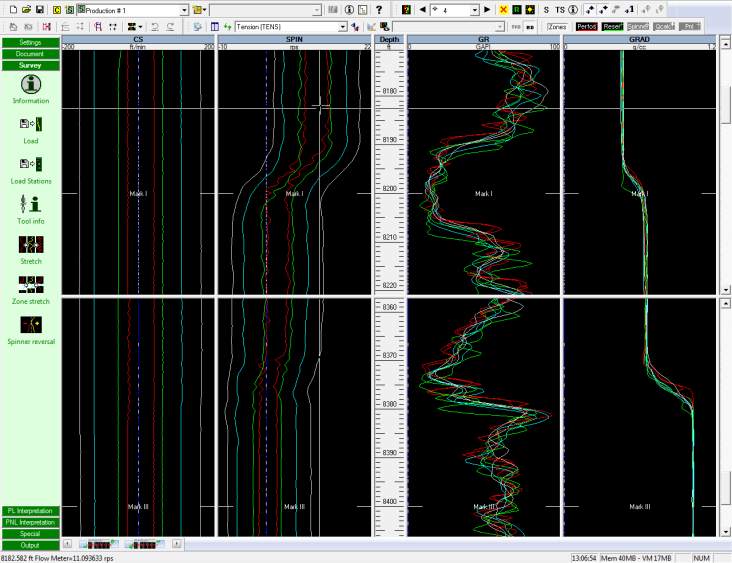
With the splitter controls, scroll the upper and lower logs to the desired position (Fig. B01.13).
Fig. B01.13 • Main screen after hiding / moving plots and splitting
Cyclic views
In Emeraude, no more than 15 views can be displayed side by side. The cyclic display mode,
activated in Settings – Default Display - Views tab, allows overcoming this limitation: if the
maximum number of displayed views is reached, when a new view is added to the right, all
views are automatically translated to the left. Two dedicated buttons (bottom-left) allow sliding
the views to right or left. The show-hide dialog helps defining the views in the cycle. More
information on this in the online help.

