Moving Replicas from an Unschedulable Node
Context
When a node becomes unschedulable due to high allocated disk space (above threshold, e.g., 80%), Longhorn prevents new replicas from being scheduled on it. To redistribute workload and maintain volume health, you can manually move replicas to other nodes.
Steps to Move Replicas
Identify the unschedulable node.
Go to the Nodes section in the Longhorn UI. Look for nodes marked as Unschedulable due to high disk usage.
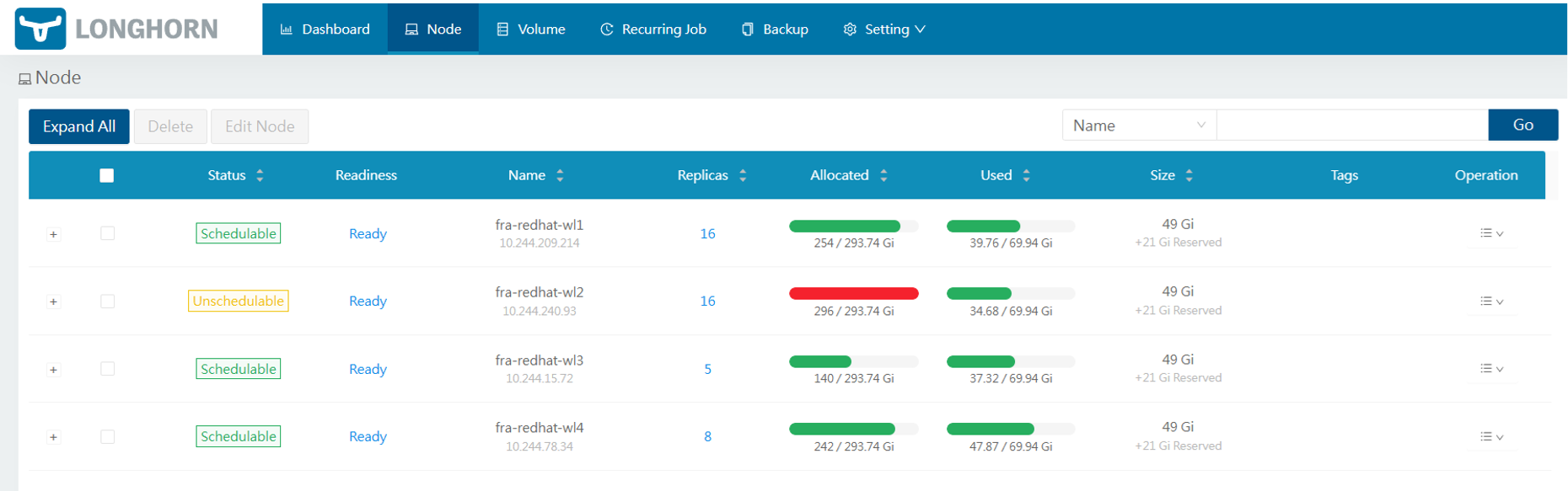
Example of an unschedulable node we want to move replicas from
Access volume replicas.
Click on the Replicas count for the affected node. A pop-up will show the list of replicas hosted on that node.
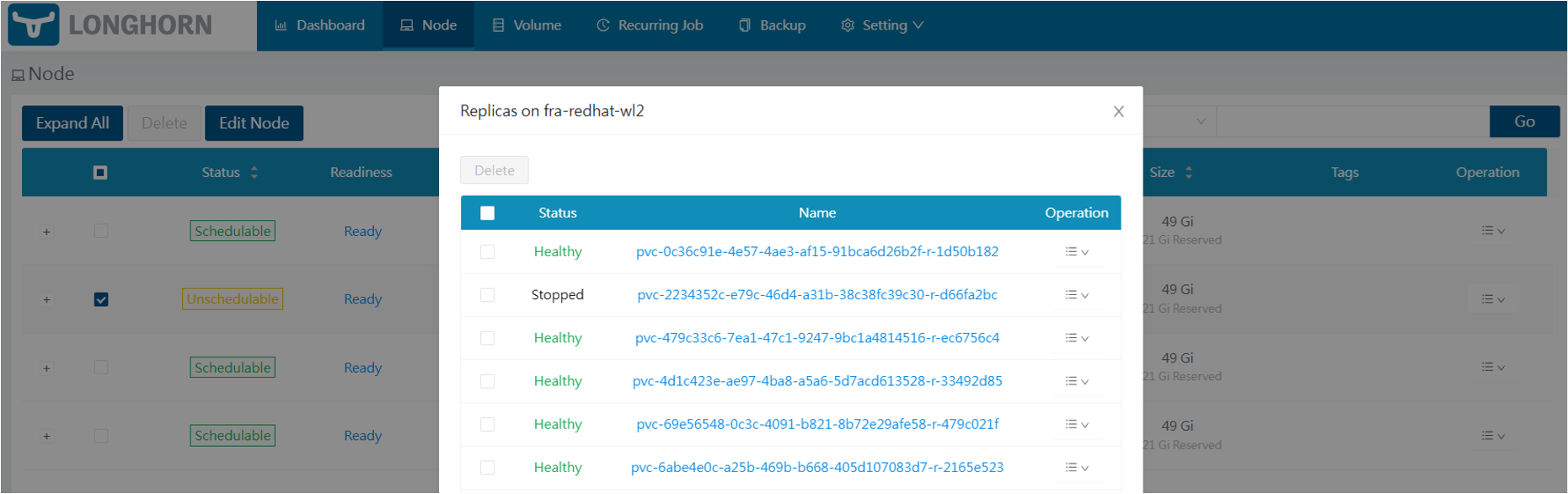
List of replicas located on a node
Temporarily increase replica count.
Select the volume whose replica you want to move. Click Edit or Update Replica Count.
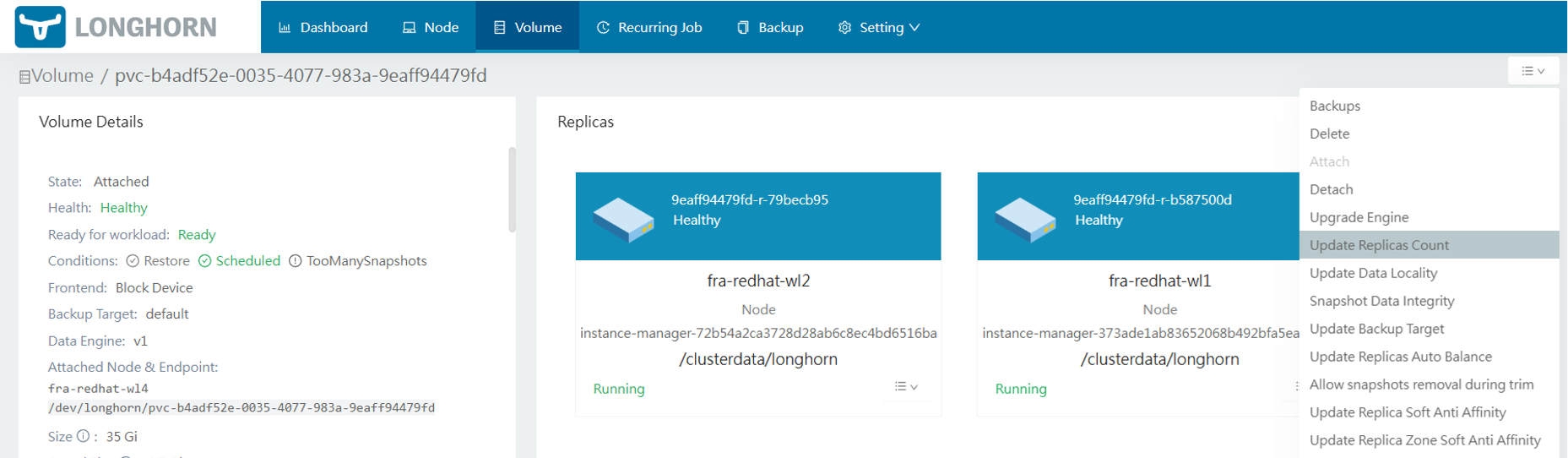
Replica count update
Set the number of replicas to 3. This will trigger Longhorn to create a new replica on a healthy, schedulable node.
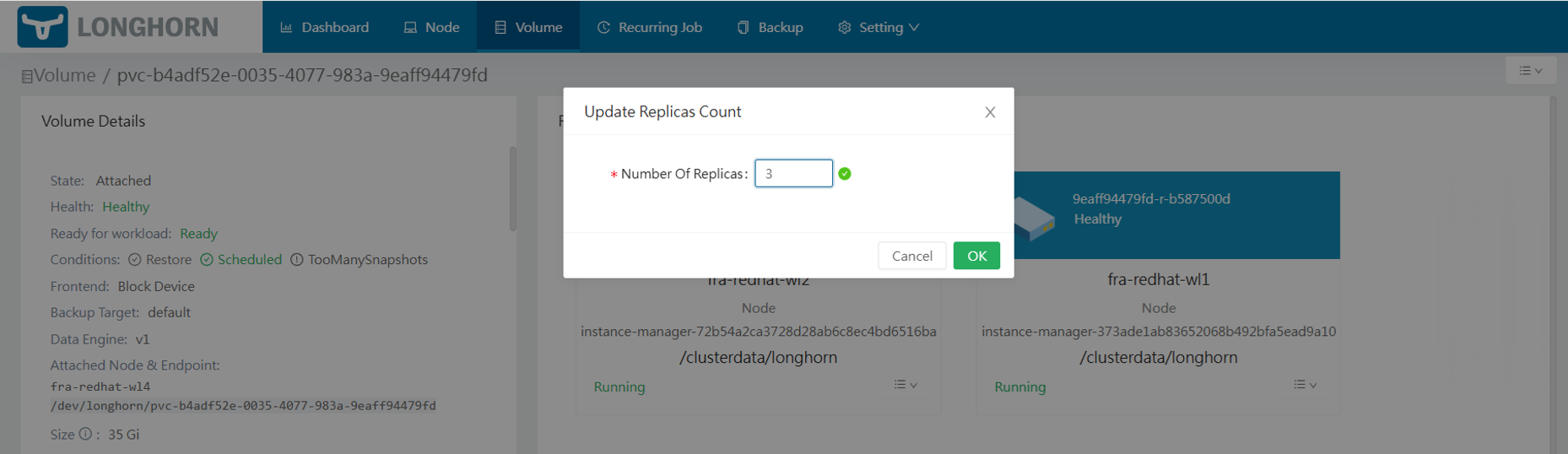
Replica count update
Remove the replica from the overloaded node.
Once the new replica is healthy, identify the replica on the overloaded node. Click Delete to remove it.
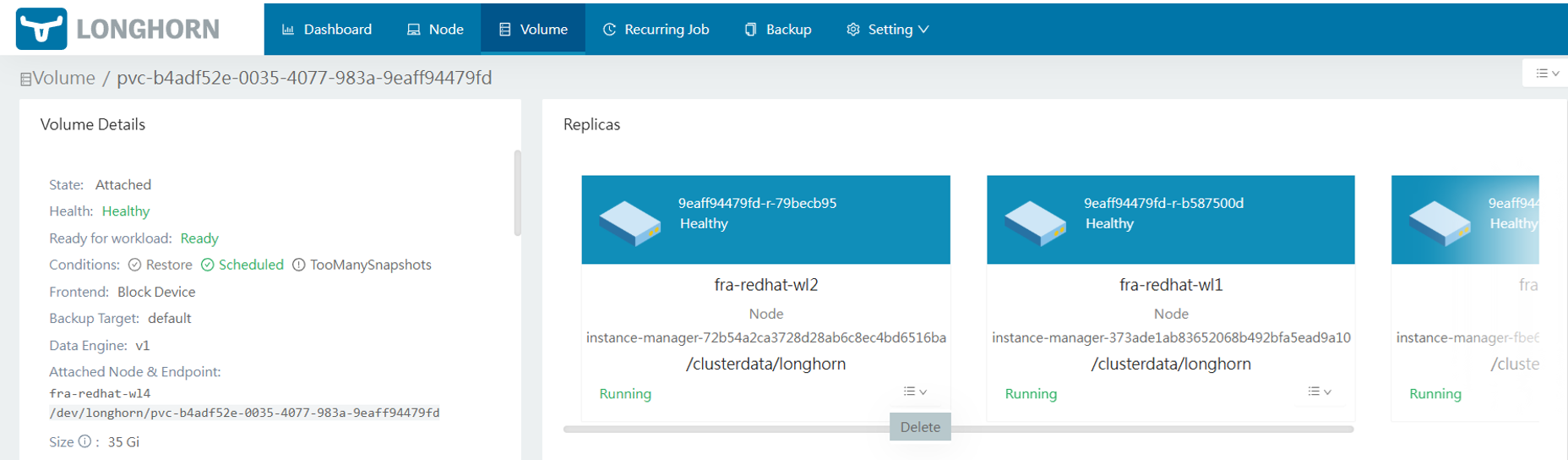
Delete replica located on the unschedulable node
Restore replica count.
Set the number of replicas back to 2 to maintain your desired redundancy level.
Check the resolution.
If sufficient disk space is freed by relocating the replica, the node will automatically become schedulable again. If not, additional replicas—or replicas consuming more disk space—may need to be moved to other nodes to bring the disk usage below the threshold.
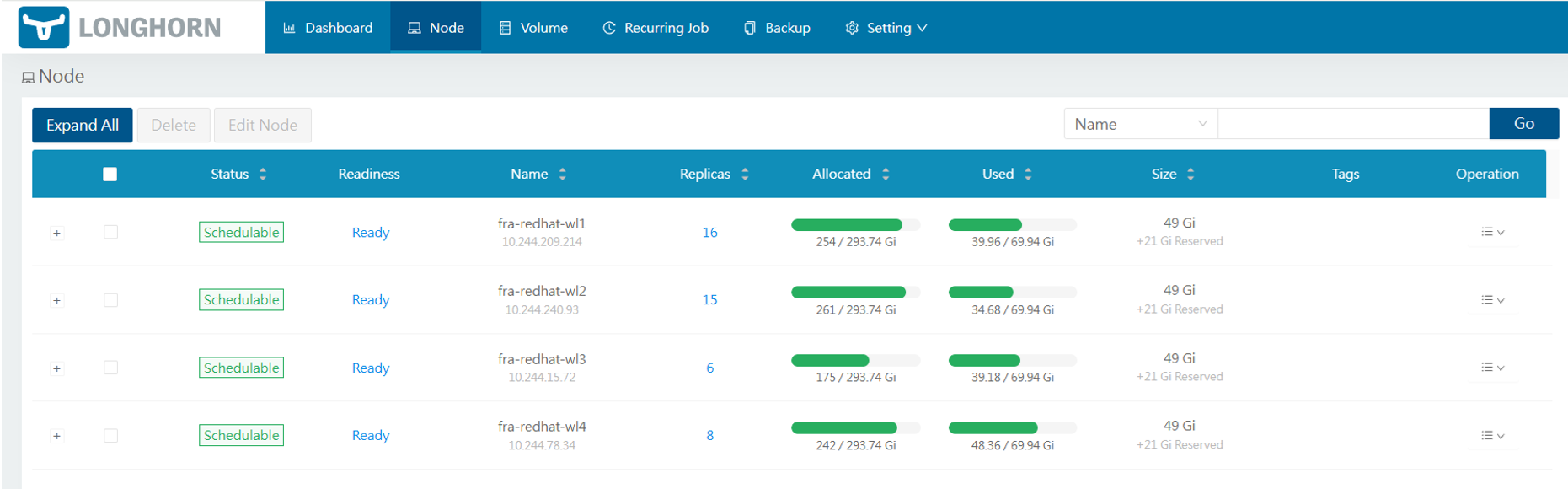
All nodes are schedulable again