Upgrading Longhorn Engine via UI After a Longhorn Upgrade
Context
After upgrading Longhorn to a newer version, existing volumes may still be using the previous engine image. To ensure compatibility and access to new features or bug fixes, it's recommended to upgrade the engine image used by each volume.
Prerequisites
Longhorn has already been upgraded to a newer version.
You have access to the Longhorn UI.
You have basic knowledge of Kubernetes and Longhorn volumes.
Log in to the Longhorn UI
Access the Longhorn dashboard via the /longhorn/ route, by authenticating with username and password stored in Kubernetes secret named longhorn-credentials under longhorn-system namespace.
Check Current Engine Image
Navigate to the Volumes section and check the State column. Volumes with an engine image ready for upgrade will display a green circled arrow next to their status.
Verify Available Engine Images
Go to Settings → Engine Images. Confirm that a new engine image (matching the upgraded Longhorn version visible in the bottom left of Longhorn dashboard) is listed and in a Ready state.
Upgrade Volume Engine Image
Return to the Volumes page. Identify volumes marked with a green circled arrow in their State column—these indicate that an engine image upgrade is available.
Select the volume(s) you wish to upgrade (all volumes with this green circled arrow and only those).
Open the Actions dropdown menu and click Upgrade Engine.
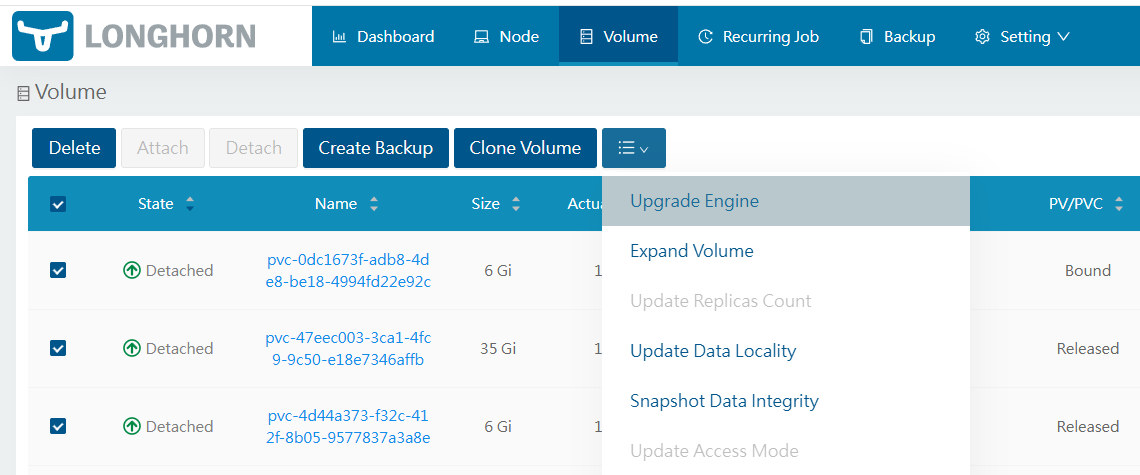
Engine upgrade for Longhorn volumes
Choose the new engine image from the dropdown.
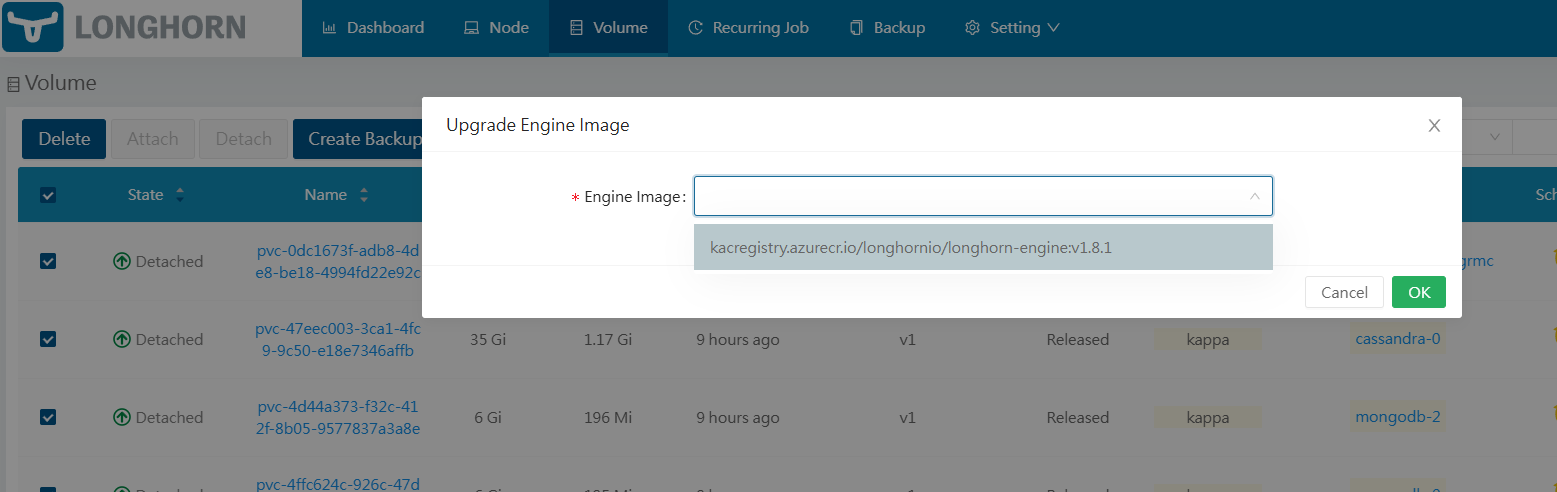
Engine image list
Confirm the upgrade.
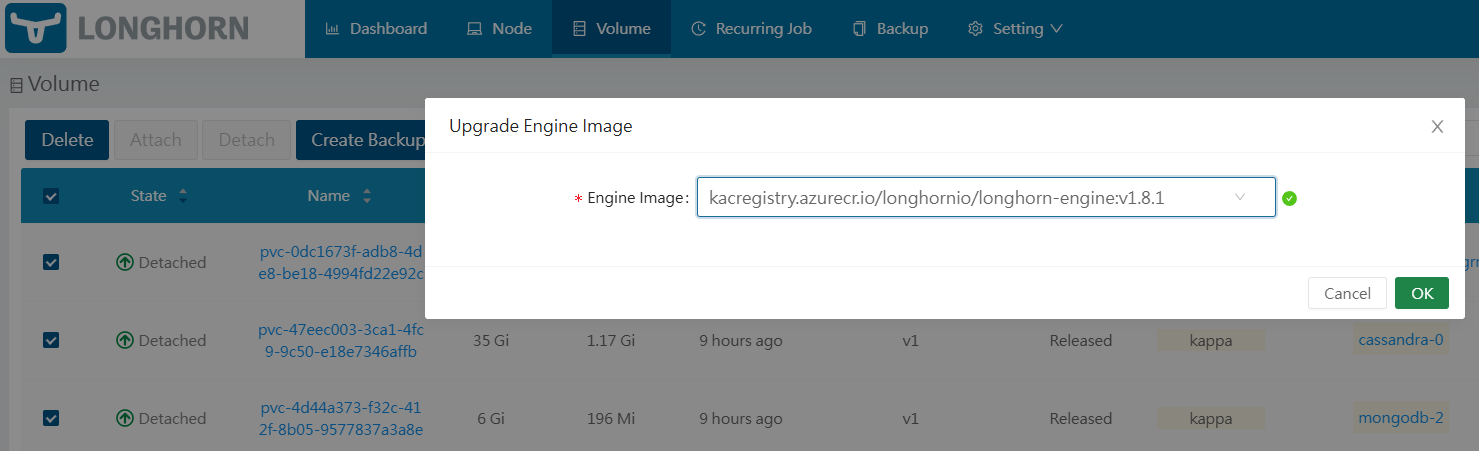
Engine image selection
Monitor the Upgrade
The volume will briefly go into a detached or maintenance state. Once complete, the volume should return to Healthy status.
Note
Always test upgrades in a staging environment before applying to production.