Shut in Identification
Objectives
Shut-in Identification (SIID) can be performed on pressure (or temperature) history data. Shut-ins are identified by searching for discontinuities in the pressure (or temperature) data. A tangent crossing algorithm fits tangents at some key points around the transient to identify the start and end of the shut-in period. Identified shut-ins are recorded in a special SIID logical channel that has the value of “1” for the duration of the shut-in and “0” everywhere else.
Input
Input type – pressure or temperature.
Look for – type of shut-in (Bulid-ups or Fall-offs).
Requires validation - Boolean input; when checked, validation by engineer is required.
Minimum pressure change - between the first point pressure and the last detected point pressure
Minimum shut-in duration - detect only the shut-in with duration greater then this value.
Input gauge - pressure or temperature gauge.
Input choke gauge optional - when this is available it is used for SI classification
Output
Raw shut-in channel - shut-in detected by the algorithm
Validated shut-in channel - shut-in detected by the algorithm and validated by an engineer
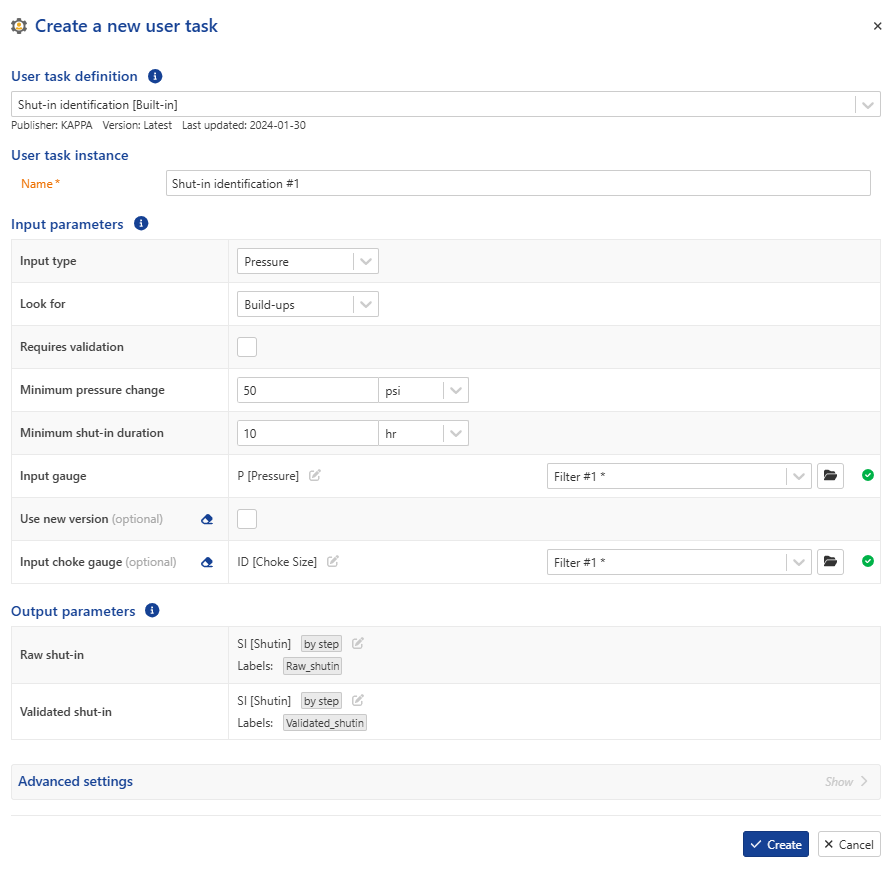 |
User Task dialog
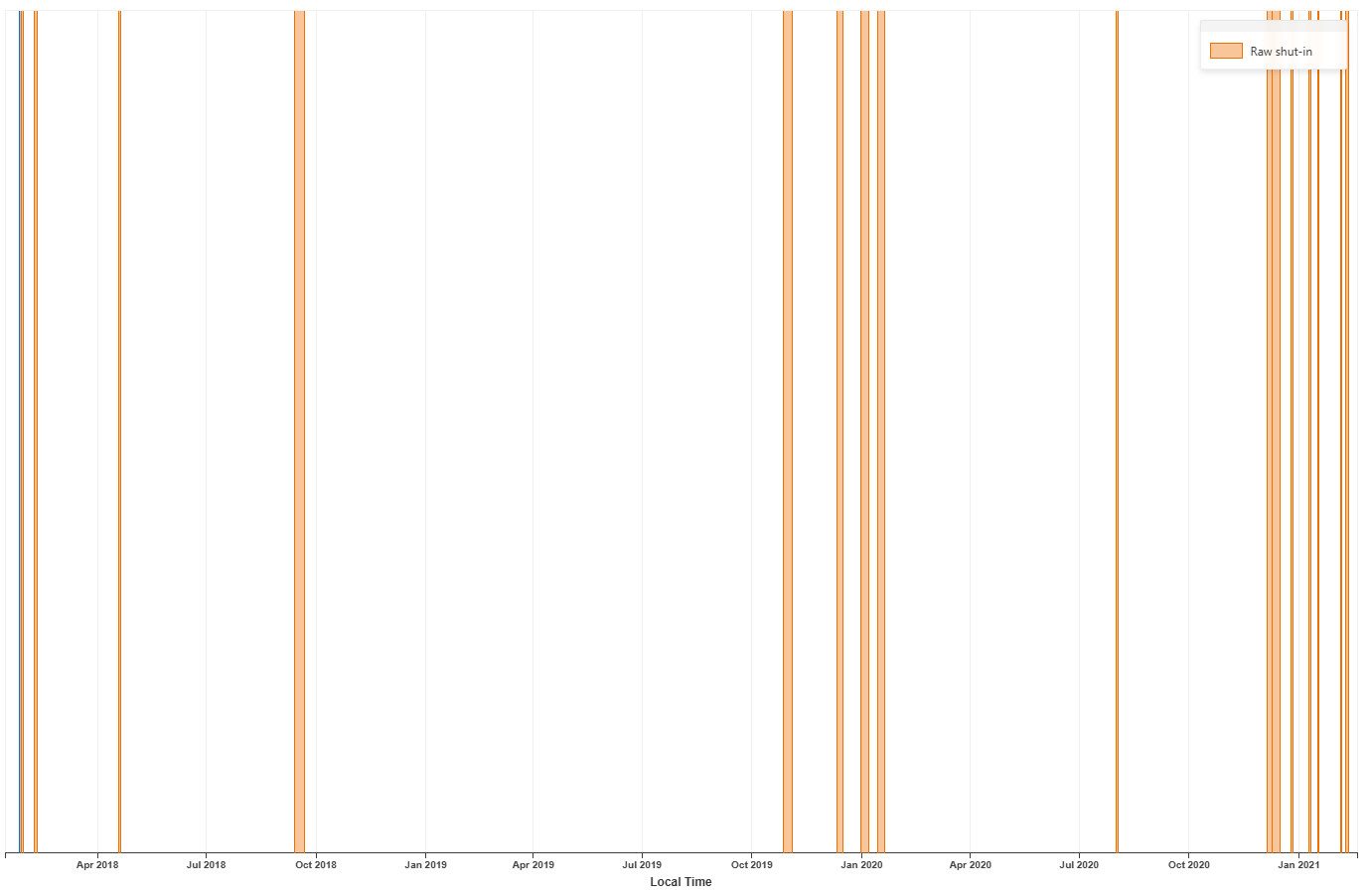 |
Raw shut in output
Note
The input pressure gauge is displayed only during the shut-in validation step.
Shut in Identification user task definition
Procedure
At the well level, click on User Task ,
 , from the top options.
In the user tasks list, select Shut in Identification.
Assign another name to the user task, if required.
Select the pressure input data type.
Select the type of the shut-in (Bulid-ups or Fall-offs).
Check requires validation if validation by an engineer is required.
Define the minimum pressure change (the amplitude of the shut-in).
Define the minimum duration (only shut‑ins with duration greater than this value will be detected).
Select the input pressure gauge.
Select the input choke gauge, if available; it will be used for shut‑in classification (hard or soft shut‑in).
Define the output data types and labels, if required.
Click Create.
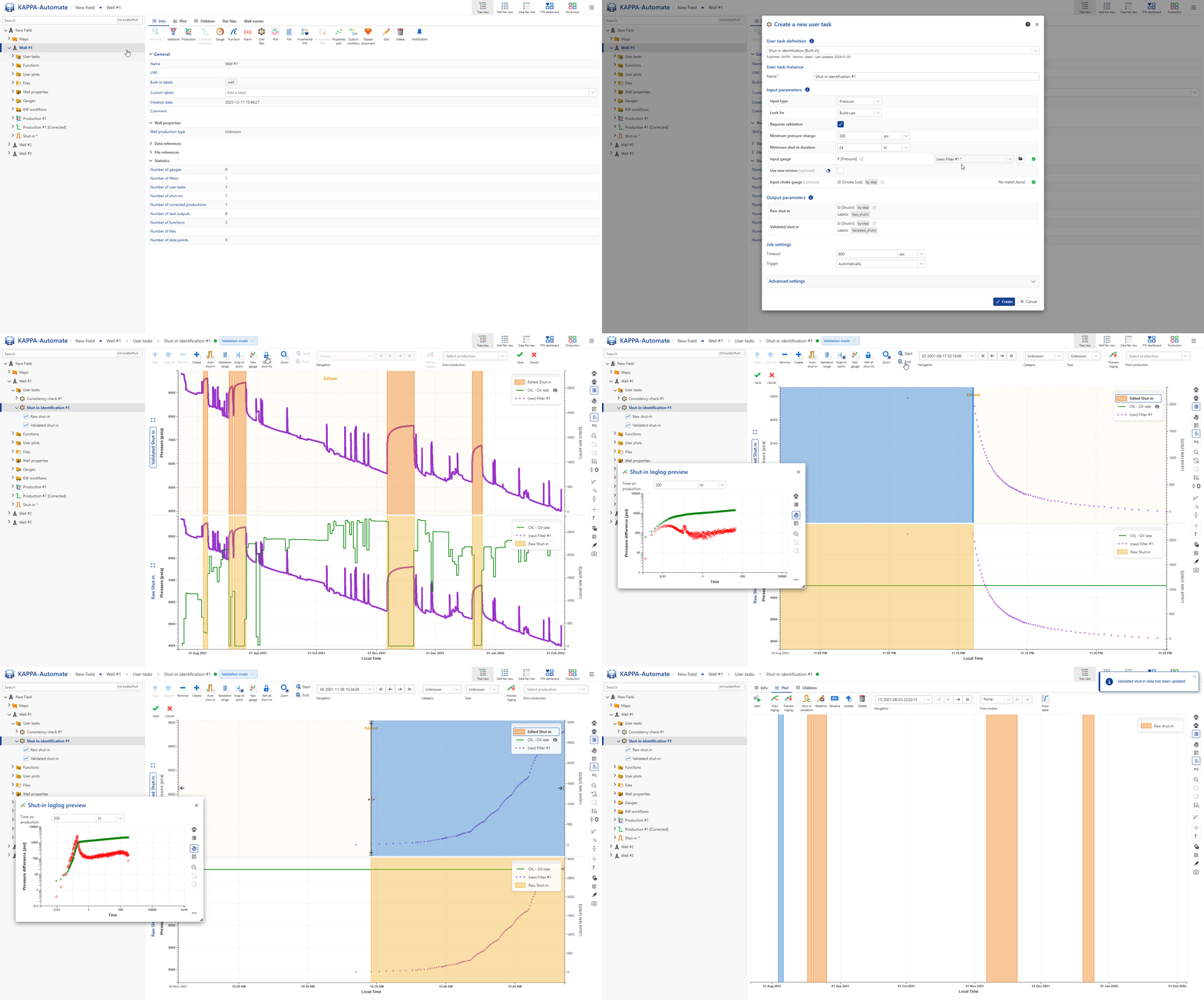
All steps are shown in the .gif below.