Defining a User Task
Switch to Automation mode.
Select User tasks in the hierarchy on the left.
Click on Create,
 , in the toolbar at the top.
Under the General Tab:
Give the new user task a Name. Name must be unique and can be a combination of letters, symbols and numbers.
Set a Version. Version can consist of letters, numbers and symbols; it can be useful in future development or testing a user task.
Define the Event Key. This can consist of letters, numbers and symbols; it can be used to create events publications that users can
subscribe to and/or use in the future.
Check Handles restart input if you want to allow this user task the ability to restart the job after it has been defined.
In Allowed context dropdown list, select where you can create this user task: well, well group, field or all of them.
Note
User task definitions are now filtered based on their allowed context. For example, at the well group level, only tasks defined with the well group allowed context will be visible, and the same applies to each level.
Enter a User task description. This should be comprehensive enough for an end-user to understand what the task is doing.
Tip
This information can be viewed during user task instance creation:

Optional. Type in Input parameter description and Output parameter description. Like User task description, they can be viewed during task instance creation.
Optional. Upload a help file (doc, pdf, or text) by clicking on Attach help file icon. This file should provide a description of the user task together with the instructions on how to use it.
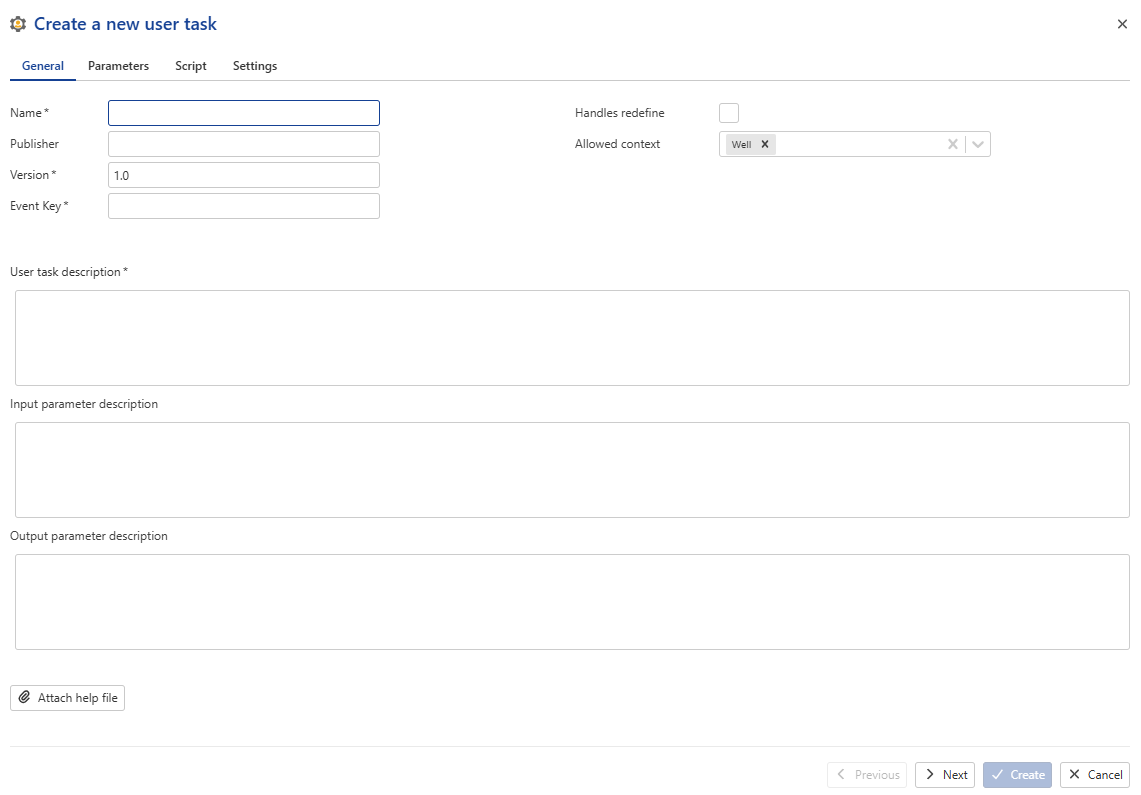
Click on Next to move to the Parameters tab.
The left part of the dialog lists Inputs while the right one lists Outputs.
Under the Parameters tab:
To add a new input or output parameter, click on Add under the relevant section.
Specify the parameter name, its attributes, Type and Data type.
Specify whether the parameter is By Step and/or High frequency.
Optional. Add a label to the function if it is going to be used in the future. Label can be selected from the dropdown list or created by typing a name and hitting Enter.
See User Task Parameters for more details.
Tip
As the parameters list grows, it may affect the readability of the list. In such cases, it is possible to collapse the parameters description list to make it concise by clicking on
 . To expand all the parameters back click on
  . Individual parameters can be collapsed/expanded using the chevron next to the parameter name.
Click on Next to move to the Script tab.
This is where the main script of the user task will be written.
See User Task Script for more details.
Optional. Click on Next to access the optional Settings tab, where Data Synchronization and Job settings can be customized for the user task.
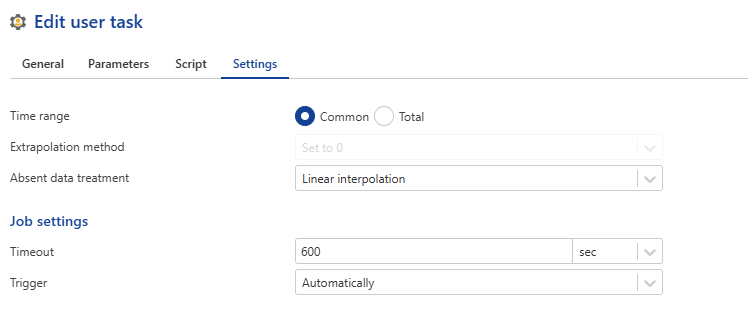
Note
If the trigger method is set to Scheduled, the delay can be customized.
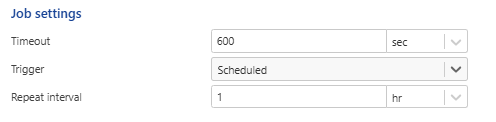
Click on Create.