File Folders
File folders can exist under a Field or a Well group or a Well . They are created automatically when the first file is uploaded to a well or a field (see File Management for more details).
There is only one Files folder under a given field or well group or well. However, subfolders may be created under the parent Files folder. For KAPPA-Workstation files inside a given folder, results can be extracted to the Master well properties container in bulk (see Result Extraction into Well Properties for more details).
Creating a Subfolder
Select the Files folder (or any subfolder) in the field hierarchy.
Under the Info tab, click on File Folder,
 .
.Give the new folder a name.
Click on Create.
Note
Multiple levels of subfolders may be created.
Deleting a File Folder
Select the file folder in the field hierarchy.
Under the Info tab, click on Delete,
 .
.
Or,
Right click on the file folder in the field hierarchy.
Select Delete.
Warning
Deleting a file folder will delete all files under that folder.
Note
If any file inside the folder is being used in any workflow, an error message will pop up informing the user and deletion will not be possible.
Renaming a File Folder
Select the file folder in the field hierarchy.
Click on Rename,
 , under the Info tab.
Or,
Right click on the file folder in the field hierarchy.
Select Rename.
Note
The parent Files folder cannot be renamed.
Moving Files between Folders
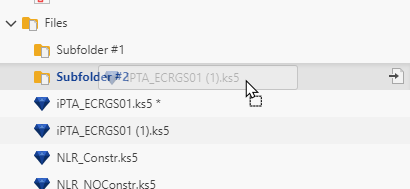
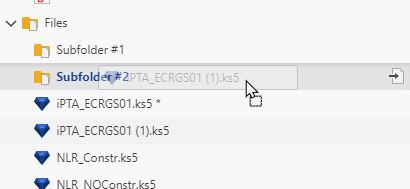
To move files from one folder to the other, simply drag and drop the file from the source to the target folder in the field hierarchy:
 |
Download the content of a file folder
Select the file folder in the field hierarchy.
Under the Info tab, click on Download,
 .
.The folder is downloaded as zip file.