Labels
Label is a data identifier that helps differentiating inputs having the same data type. The idea of label’s usage is to assign the label to data and use the label to easily find the data when setting Inputs.
There are built-in labels and custom labels. All the labels are saved in the independent list in K-A that can be used or updated anytime as needed.
There is flexibility in creating custom labels, assigning both types of labels to data and adding the labels to inputs’/outputs’ settings. Labels can be:
Created/assigned to data when loading the data or created/assigned to existing data
Created/added to inputs’/outputs’ setting when defining a function/user task or when creating a function/user task instance.
Where You Can Create / Assign / Add a Label
There is the Add a label field dedicated for assigning and adding labels; and the same field is used to create new labels.
The dedicated Add a label field can be found:
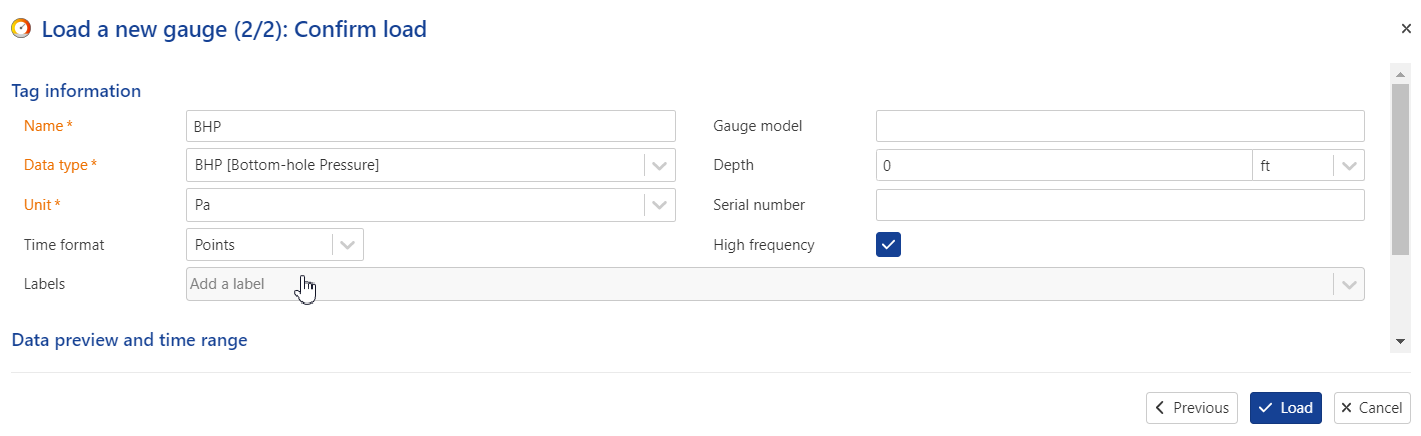
In the data loading dialog (step 2)
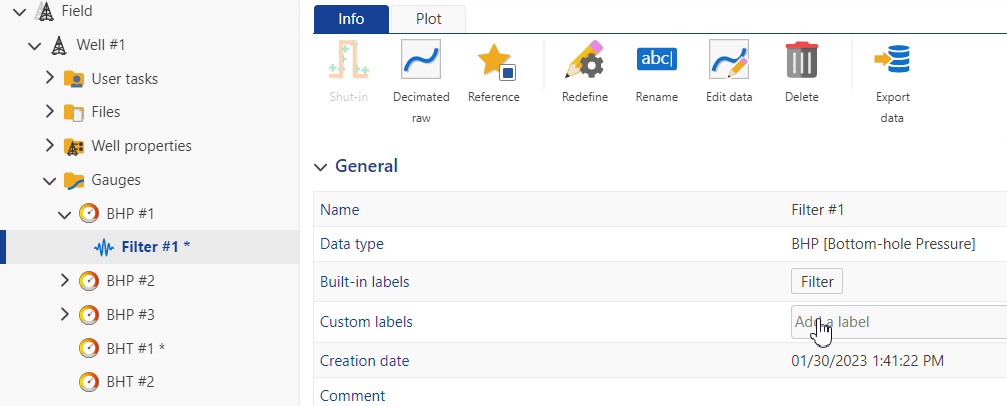
On the Info tab when a data node is selected in the hierarchy
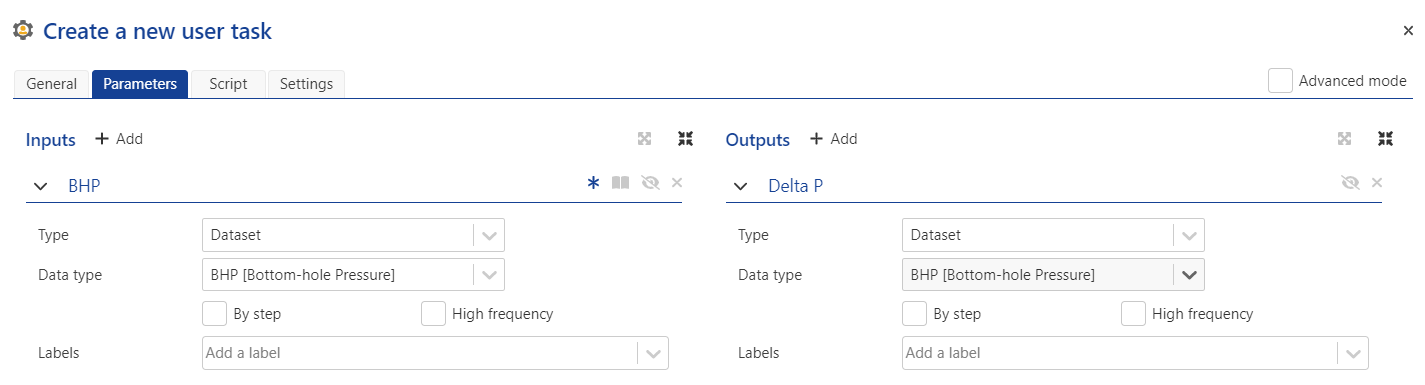
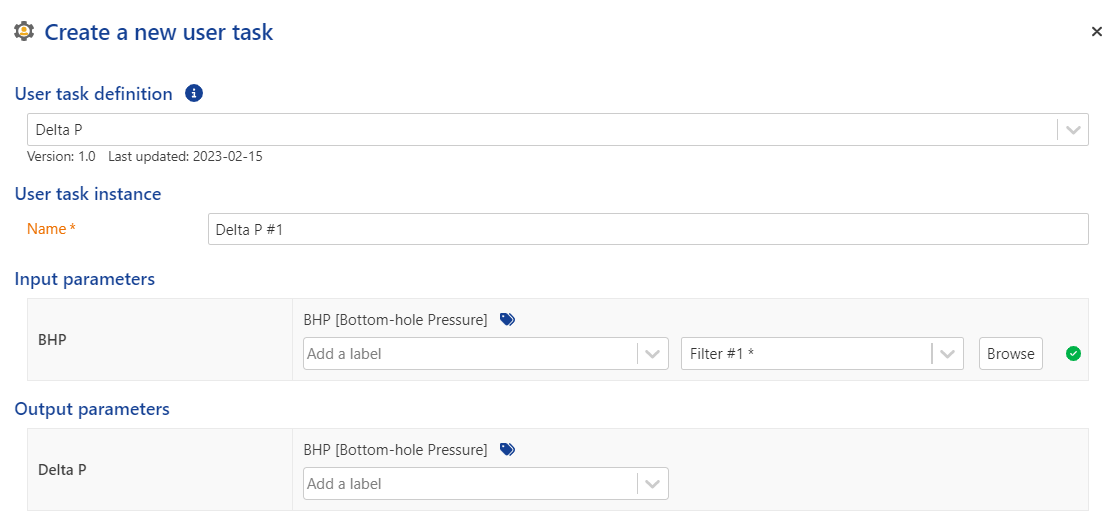
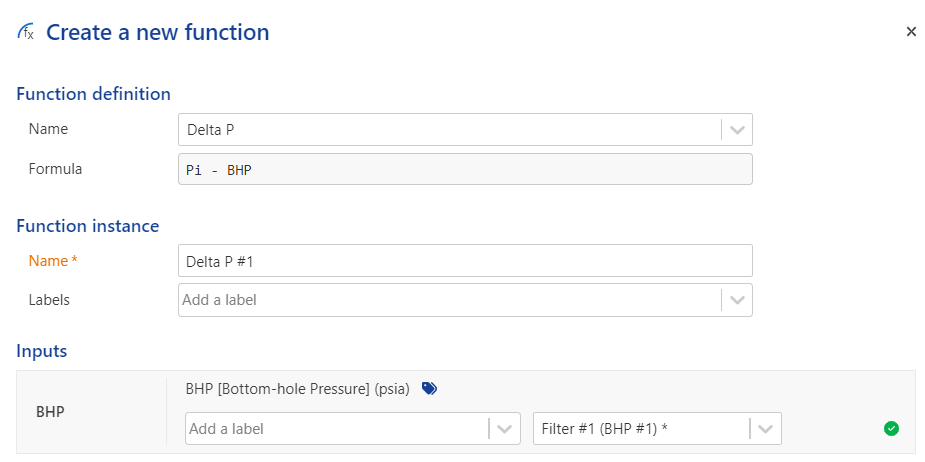
In the Create a new function / new user task dialog in the Automation mode
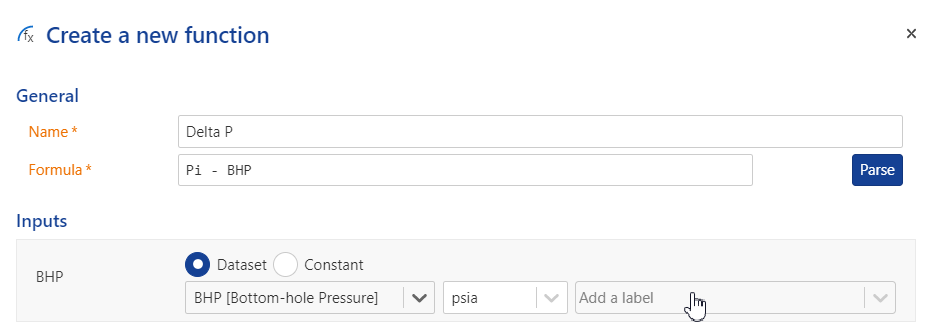
In the Create a new function / new user task instance dialog in the PDG mode
Note
The Add a label field for inputs and user task outputs is hidden by default in an instance creation dialog if a label(s) was not added in Automation mode. To create and/or add a label here, click Labels,
 on the right from the input/output parameter, which will unhide the Add a label field.

Creating / Assigning / Adding a Label
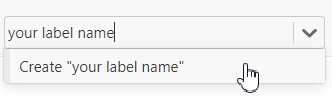
To create/assign/add a new label type the new label name in the Add a label field, press Enter or click Create “your label name”.
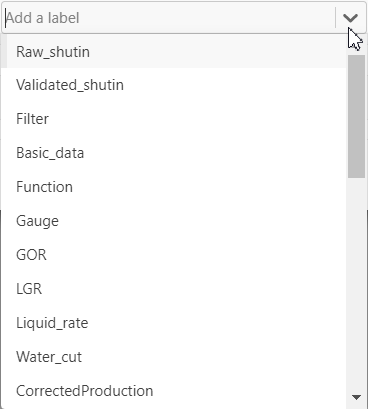
To assign/add an existing label, select the label from the dropdown list.
Note
It is possible to assign/add as many labels for one data as needed.
 |
Tip
To remove a label from a data click  at the right from the name of the label you want to detach.
When Labels are Added
If a label was added in the Create a Function / User Task dialog in Automation mode, then two options are possible:
If the label was assigned to some data, then these data will be suggested as inputs in the Create a Function Instance / User Task instance dialog in the PDG mode.
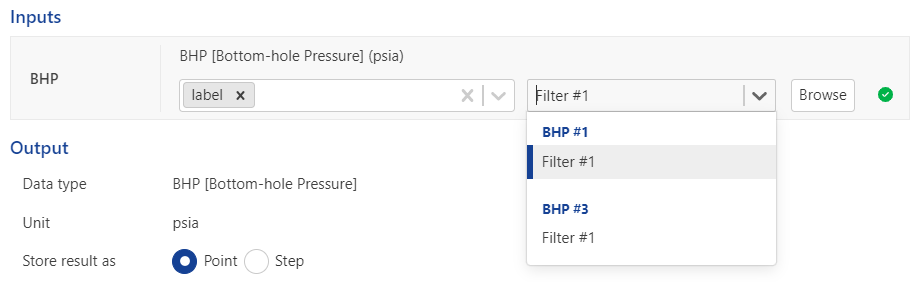
If there are no data with such label assigned, you will see the “No match found” message.

In this case you need to either assign the label to some data, or, if appropriate, change the label, or remove the label(s) in the Inputs section to have a choice from all the loaded data.