Creating a User Task Instance
After a user task is created in the Automation mode, any number of User Task's instances can be created for any well or group of wells.
Creating a Single User Task Instance
Switch to PDG mode.
Select the field.
Select the well in the field hierarchy.
Click on User Task,
 , in the toolbar at the top.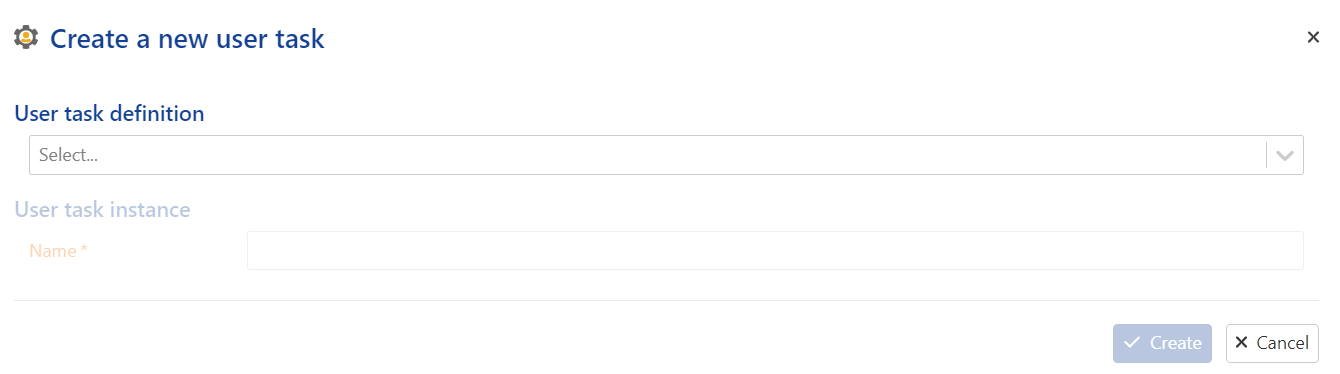
Select the user task from the User task definition drop down list. The list will display all the available user tasks.
Tip
Once selected, hover the cursor over the Info icon,
 , to read the user task description.
The dialog will be refreshed with the different input and output parameters and other settings related to the selected user task.
Rename the user task instance if needed.
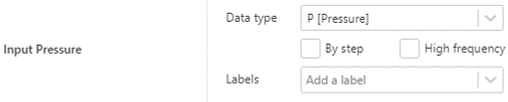
If necessary, edit the default input parameters. To redefine the data channels, use the drop down list or browse through the channels in the well.
Important
Inputs section contains a list of channels in the well having the data type that was defined when a user task was created in Automation mode. If no label was set the reference channel is selected by default. If a label(s) was added, the drop down list contains only the channels with the label(s) attached.. If there are no data of the necessary type in the well you will see No match found and the instance cannot be created (Create button is not active).
Note
If an input parameter is optional it can either be empty or have some default value. If it is not empty or you have set some value/selected some item from a list but finally decided not to use this optional parameter in the calculations, clear the input by clicking on
 .
.Tip
Data types and other input attributes can be edited from the user task instance dialog. For this click on
 to activate the dropdown list of attributes and edit it.
If the list of available channels is big it is possible to reduce the choice of the channels by introducing label(s) aprior.
Optional. In the Output section, add/remove or edit any labels which may have been assigned to the output channels.
Optional. For user tasks with output channels, the output can be previewed using .
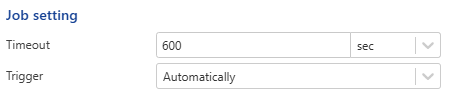
Optional. For job settings:
Modify the timeout if needed.
Adjust the trigger mode:
Automatic (default)
Semi-auto (runs when created, then waits for user update)
Manual (requires manual start)
Click on Create.
Note
User task instances are listed under a dedicated User tasks folder under the well in the field hierarchy.