Create a Topaze Document
Topaze document can be created directly under a well in KA. It will be saved in a dedicated folder, created at the same level as the current file.
To create Topaze document inside KA:
Select the well.
Under the Info tab, click on Topaze Document ,
 ,.
,.
In the pop-up dialog, enter a name for the document.
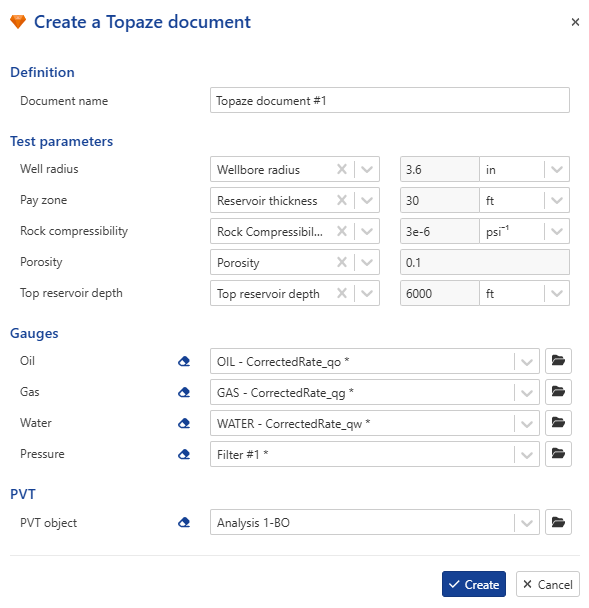
Select the well properties from the well container (if available). If not available, remove them and fill in the values manually.
Select the gauges to load.
Note
The document reference date is automatically set to the minimum date among all rates and pressures.
The document will inherit the unit system from the field unit system in KA:
If KA field units = built‑in (Oilfield, SI, French, Hydro), the document is created using the corresponding unit system.
If KA field units = custom, Oilfield units are used.
The wellbore description and BHP conversion inputs are transferred to the generated file.
If a PVT object already exists under the well, it will be automatically selected. Otherwise, the default three phases PVT will be used (Saturated oil + Water).
Result
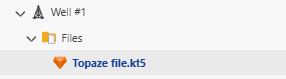
When the Topaze document is created, a new folder called Files will automatically be created under the selected well. The newly created Topaze file will appear inside this folder:
 |
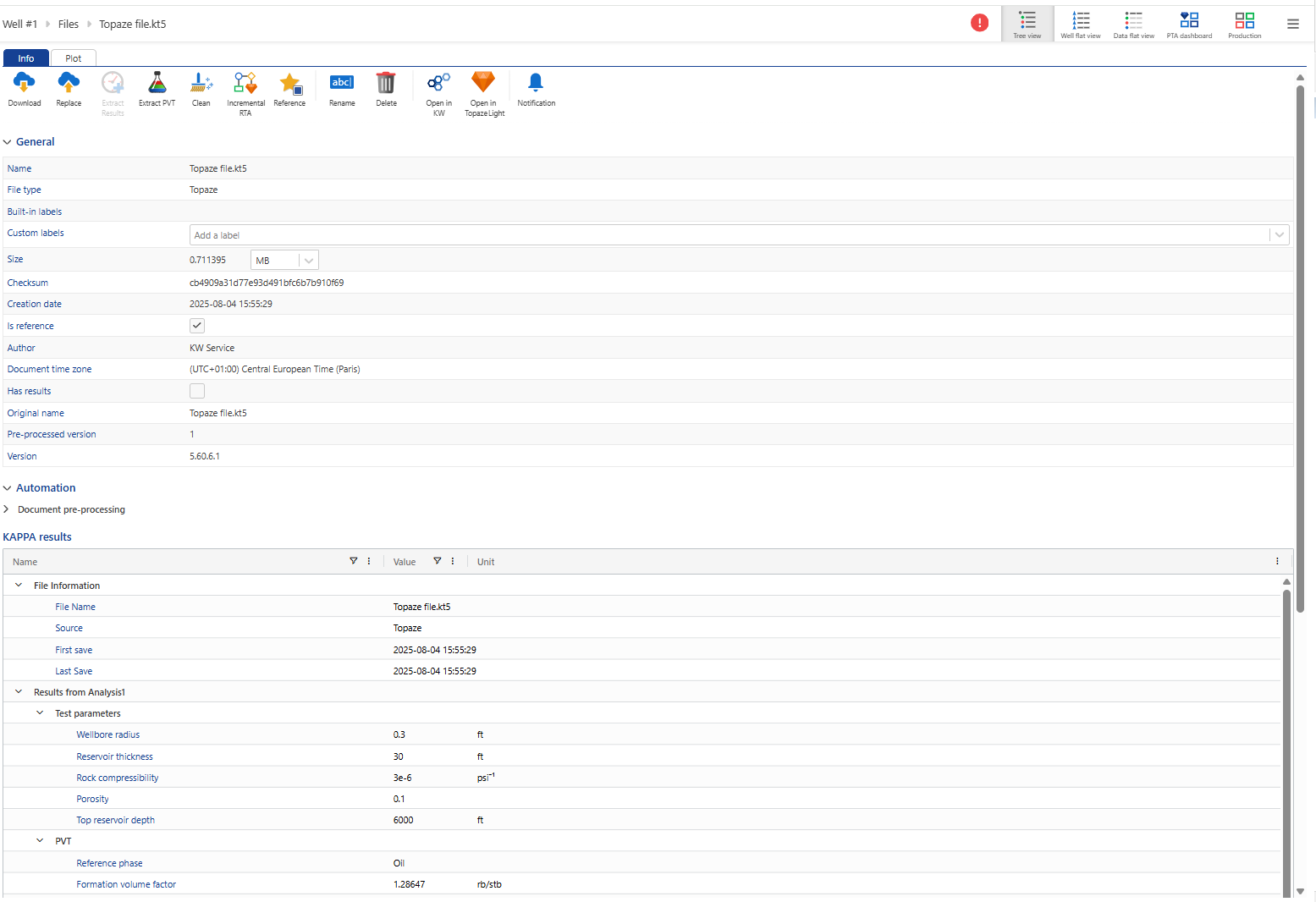
If you click on the Topaze file and go to the Info tab, you will see the general information related to the file (similar to all KW documents):
 |
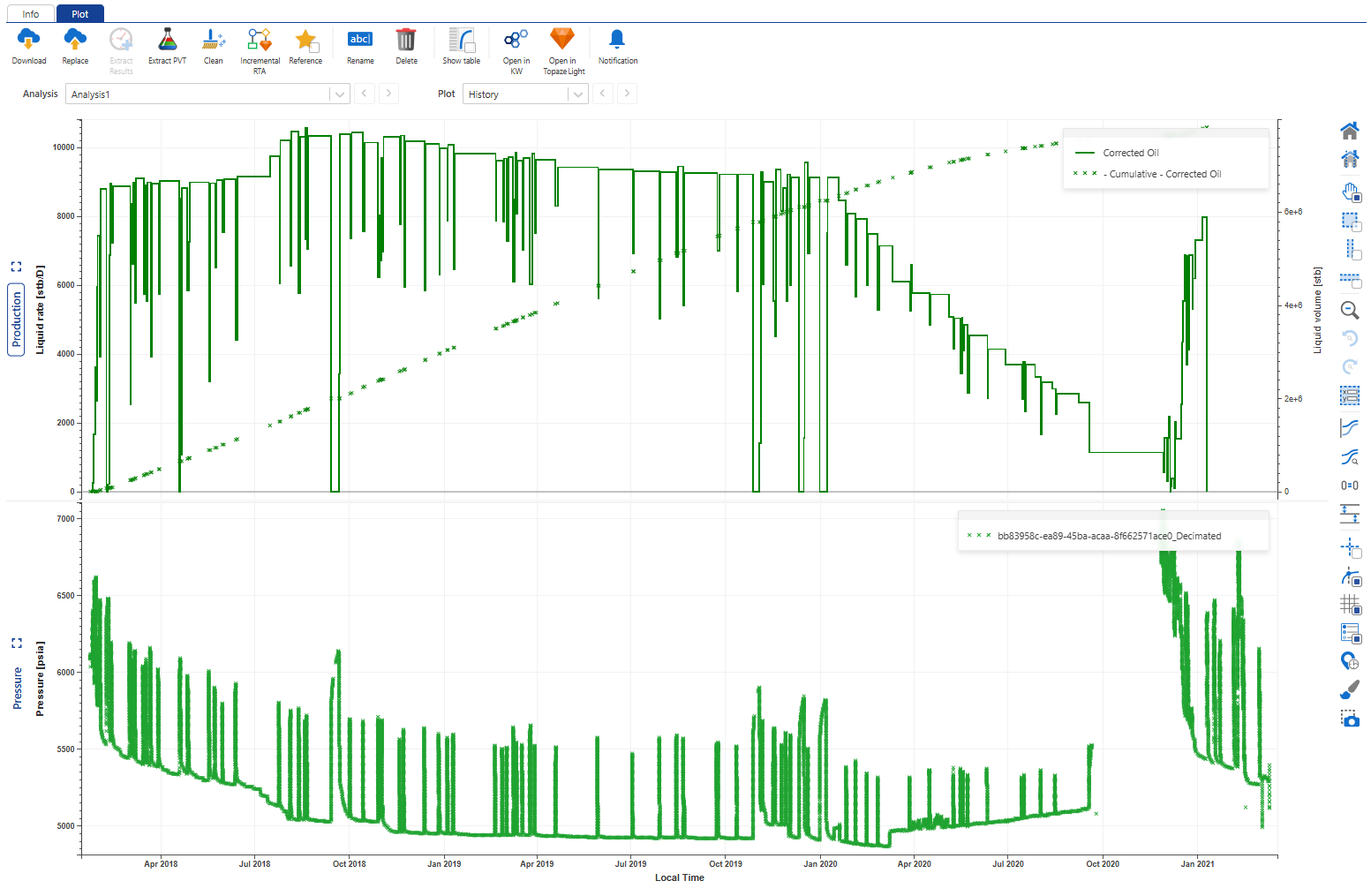
If you switch to the Plot tab, you will see the gauges that were loaded into the file:
 |