User Task Instances Batch Creation
Switch to PDG mode.
Select the field.
In the field/well group node click on Create User task with aggregator,
 , under the Info tab:
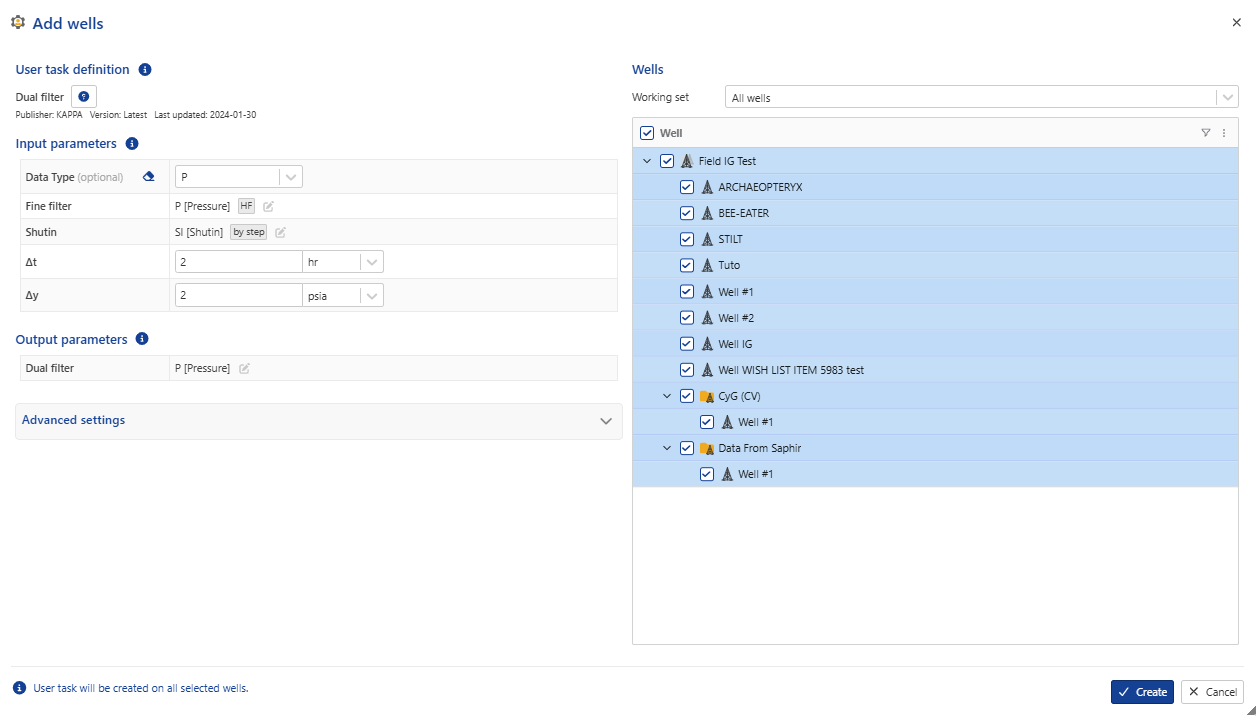
Select the wells for which the user task instance is to be created.
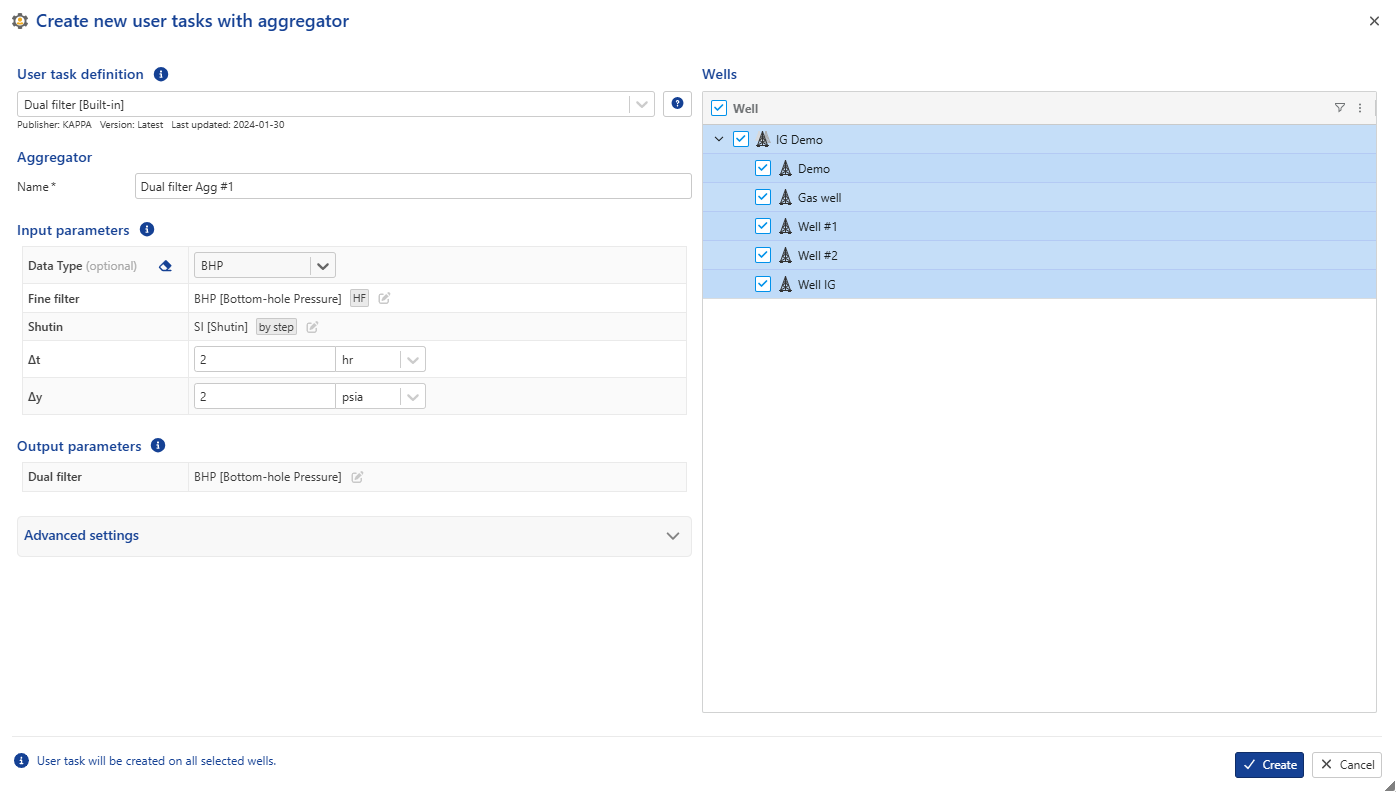
The remaining procedure is similar to the one explained above, with the following exception:
Important
In batch creation it is not possible to set the input data channels for each well individually; the reference channels of the corresponding data type will be used automatically or it is possible to define labels under for each channel.
Click on Create.
Add a new well to an aggregator
A new well can be added to an existing aggregator, with the limitation that only wells may be added; other existing inputs in the aggregator cannot be modified. To proceed:
Under the relevant field or well group, click the aggregator to be updated.
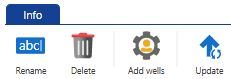
In info page, click on Add wells option ,
 .
.Select the well(s) to include.
Click on create