PVT Object Extraction
PVT object can be extracted manually from the documents stored under a field, well group or well and saved under dedicated file folder which is created at the same level as the file and will be called PVT
Select the K-W document under a field, well group, or well.
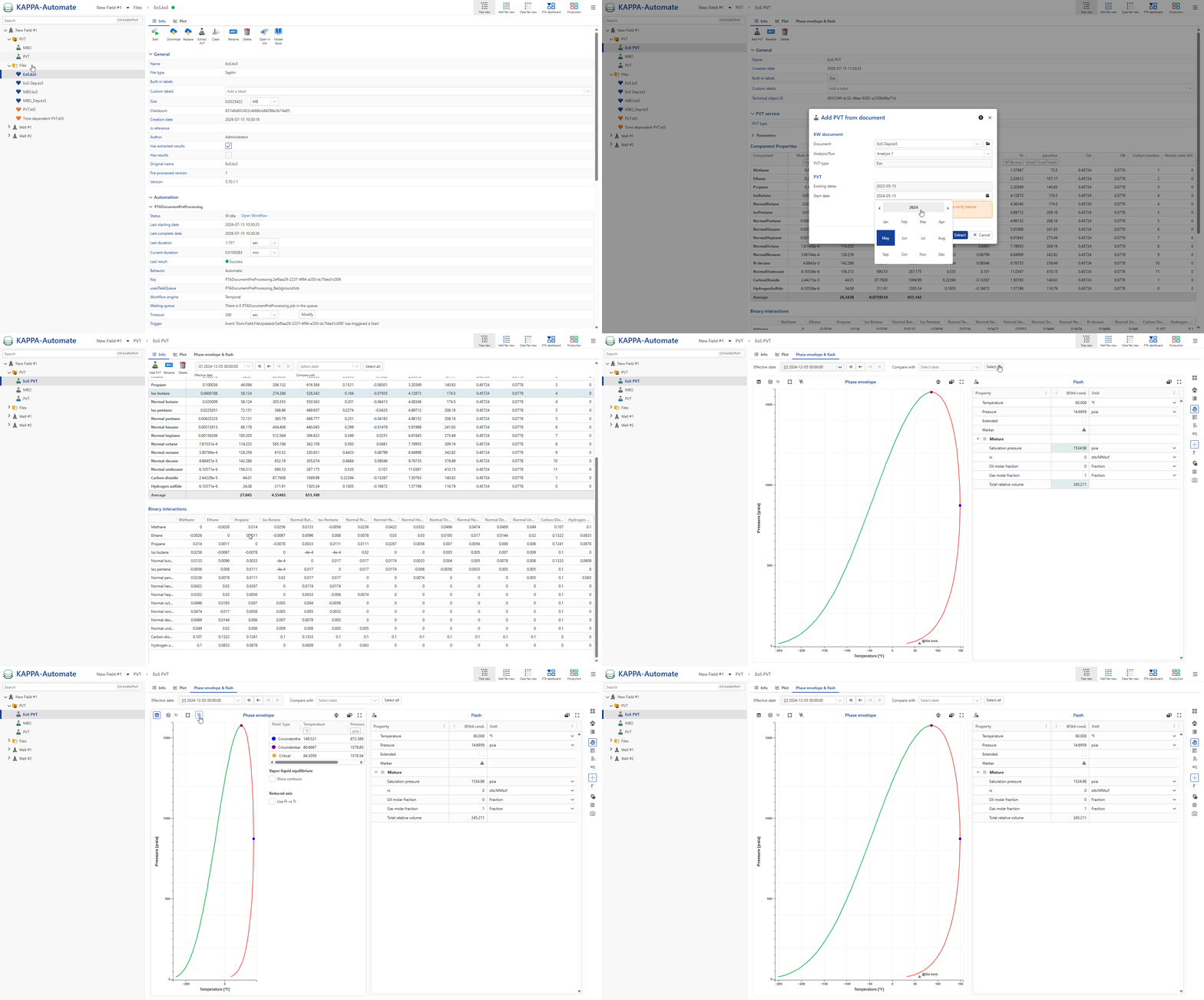
Under the Info or Plot tab, click on Extract PVT,
 .
.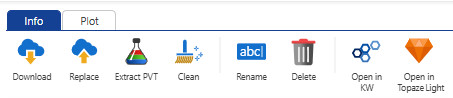
The PVT type will be automatically assigned based on the file content—either EoS or Black Oil—determining how the PVT data will be extracted.
Rename it as needed.
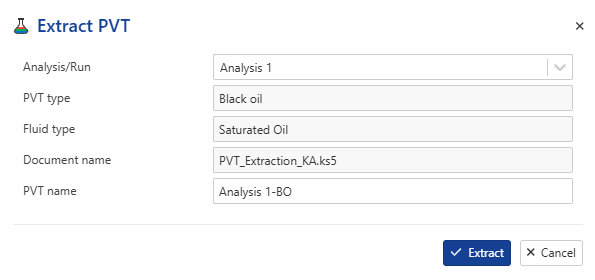
All steps are shown in the .gif below.
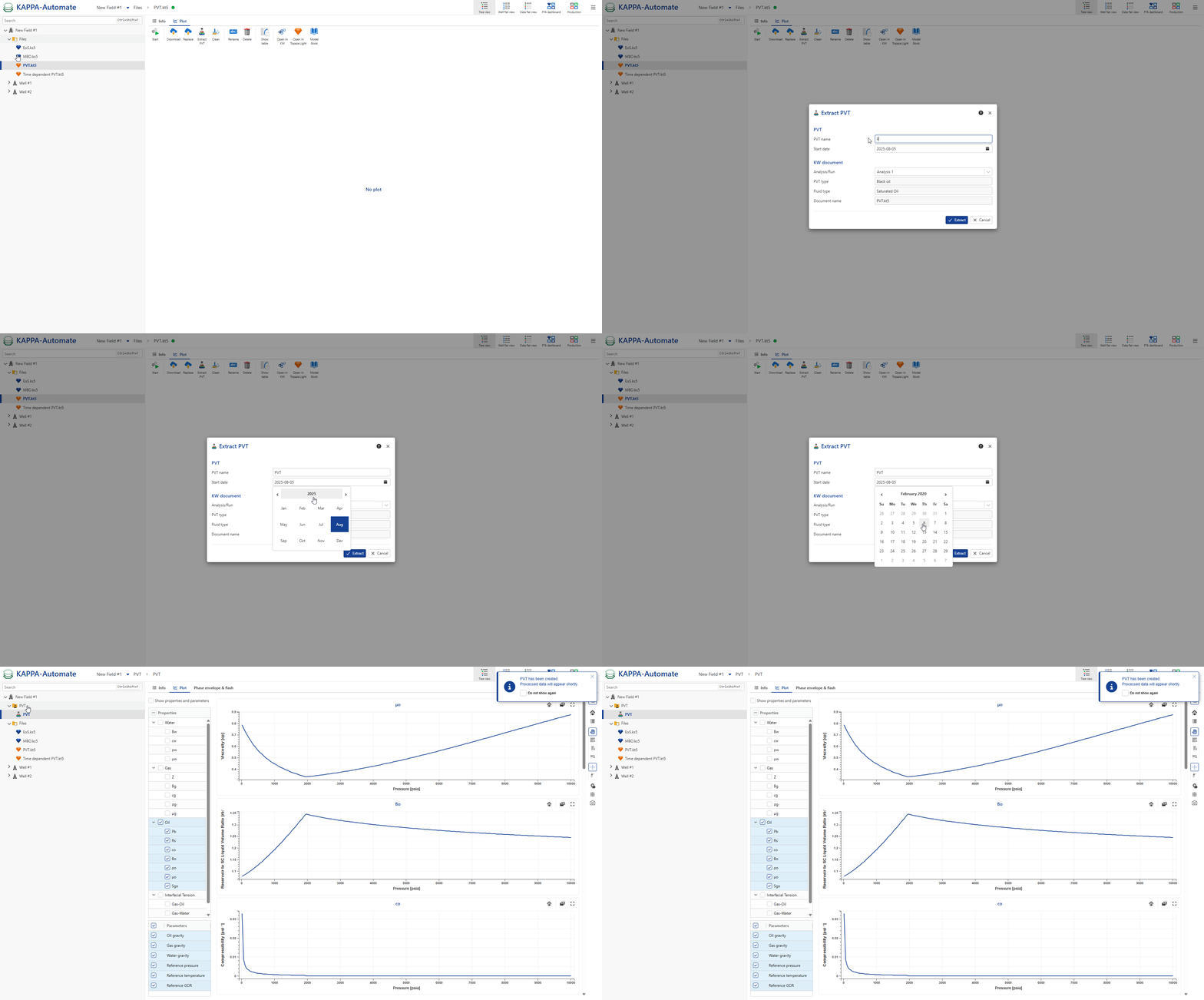
Select the PVT object to which the new data will be added..
In info page, click on
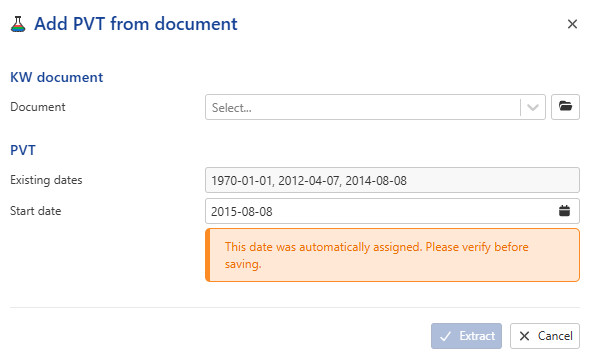
Select the K-W document from which the PVT data will be extracted.
Define the start date for the new PVT data.
Click on Extract.
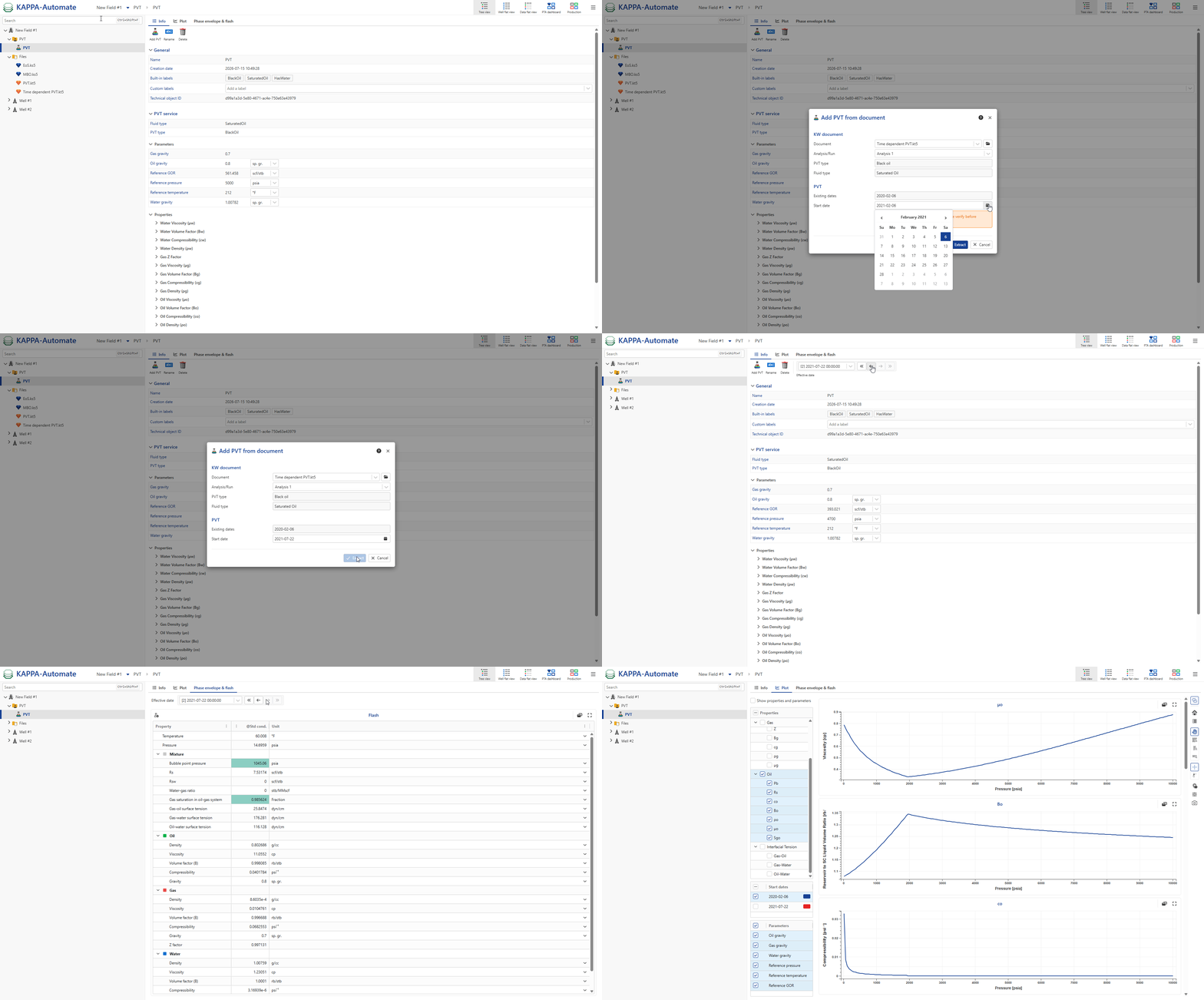
All steps are shown in the .gif below.
Extraction Result
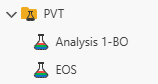
When Extract PVT is first launched, it will create a new folder called Pvts in the same level as the KW Document, with the PVT object:
 |
Selecting the PVT object displays general information and PVT details, including:
Fluid Type
PVT Type
Parameters
Fluid Properties
Black Oil PVT
For a Black Oil PVT object:
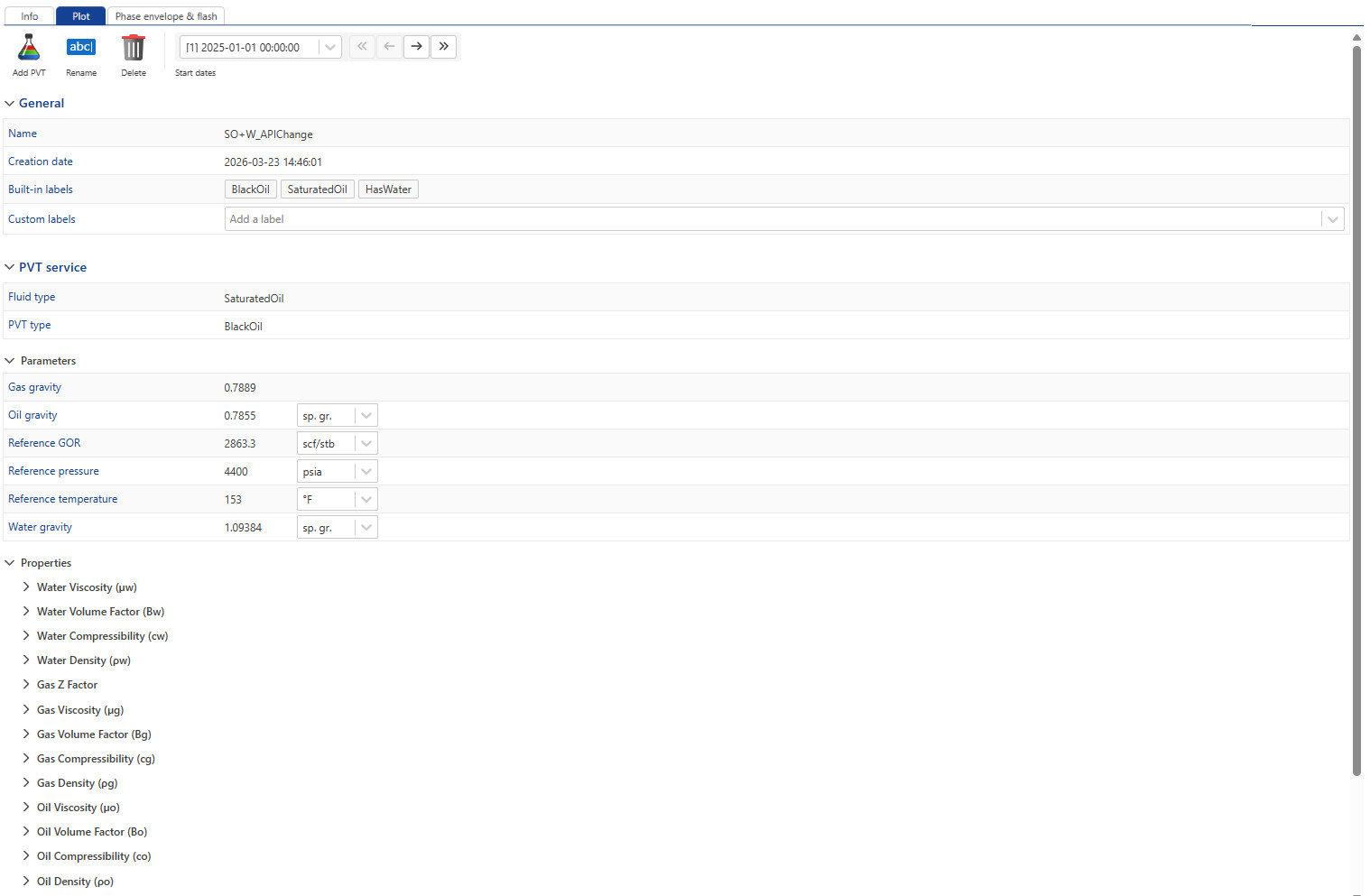
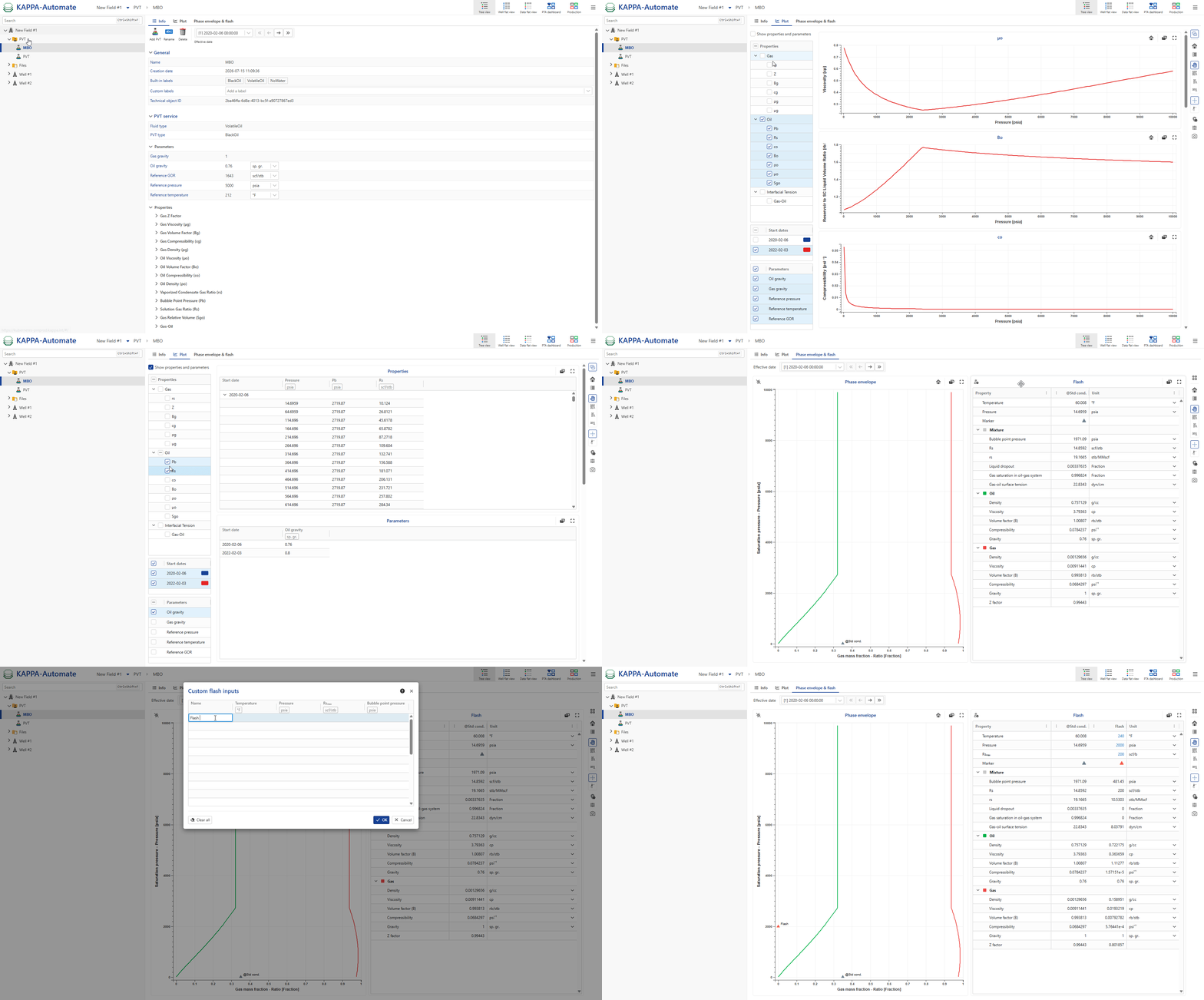
The Info tab displays general information and PVT details, including fluid type, PVT type, parameters, and fluid properties.
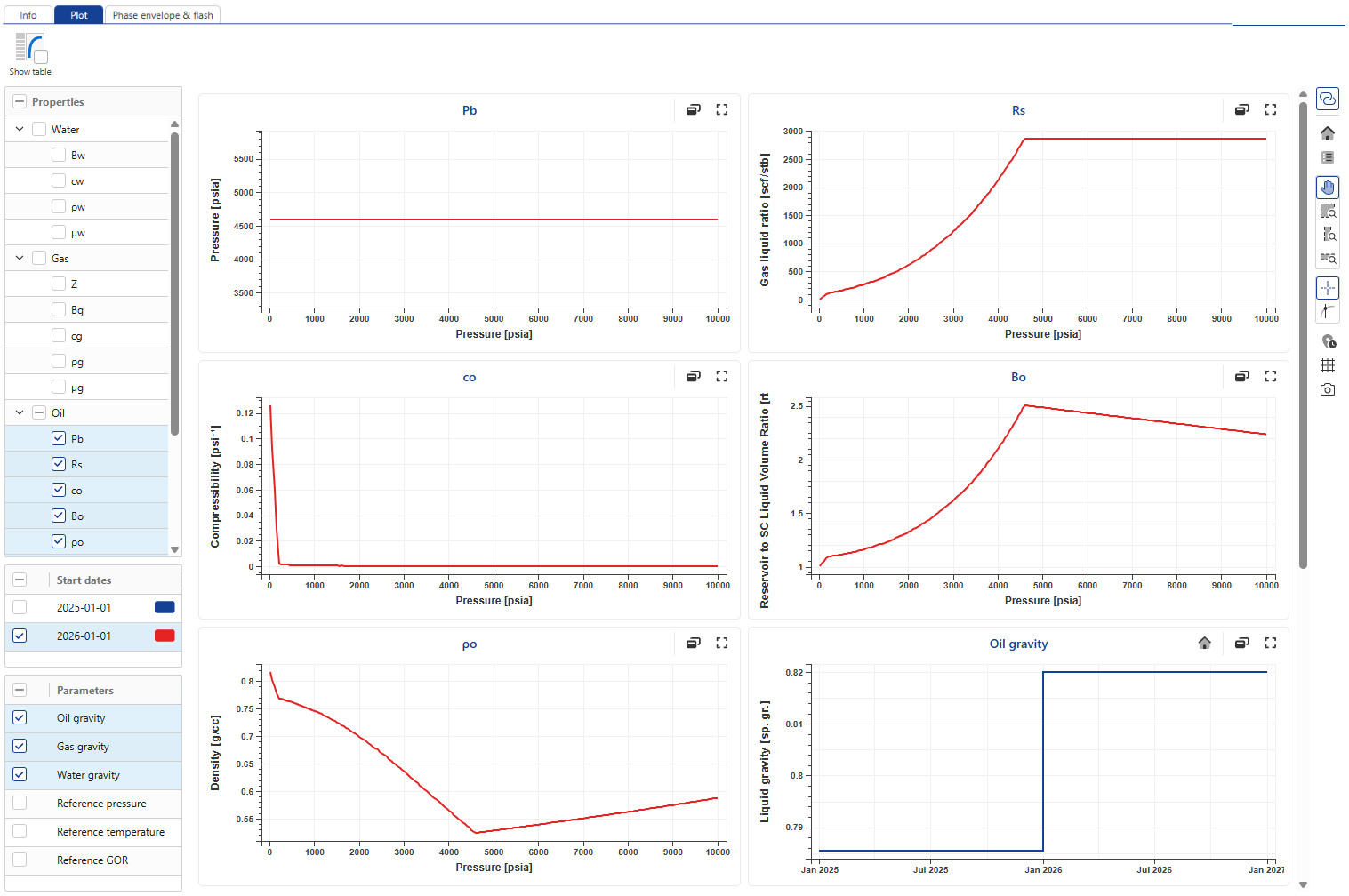
The Plot tab displays fluid property plots. Users can display multiple properties simultaneously by selecting the desired ones. Time dependent gravities can also be displayed.
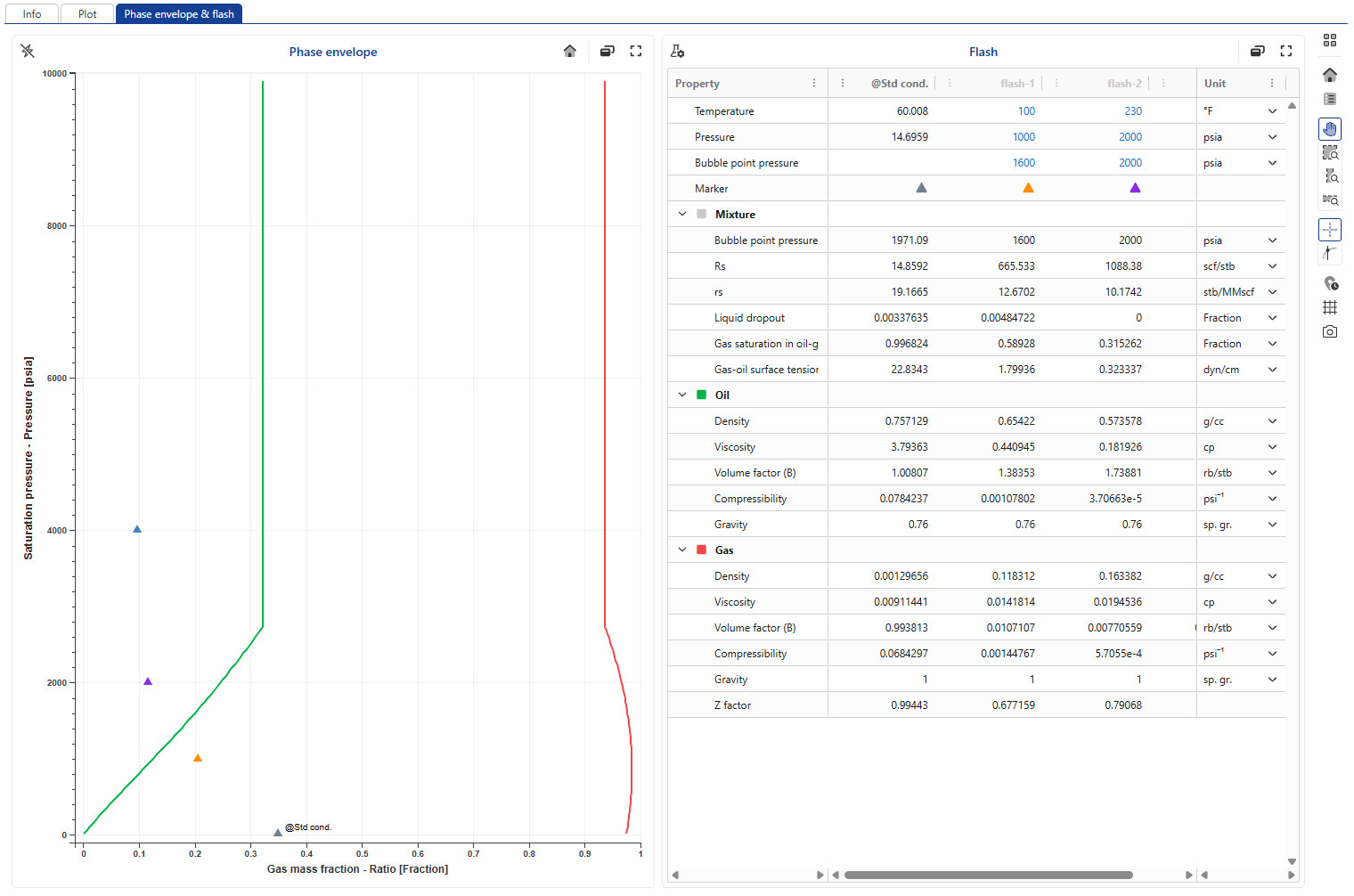
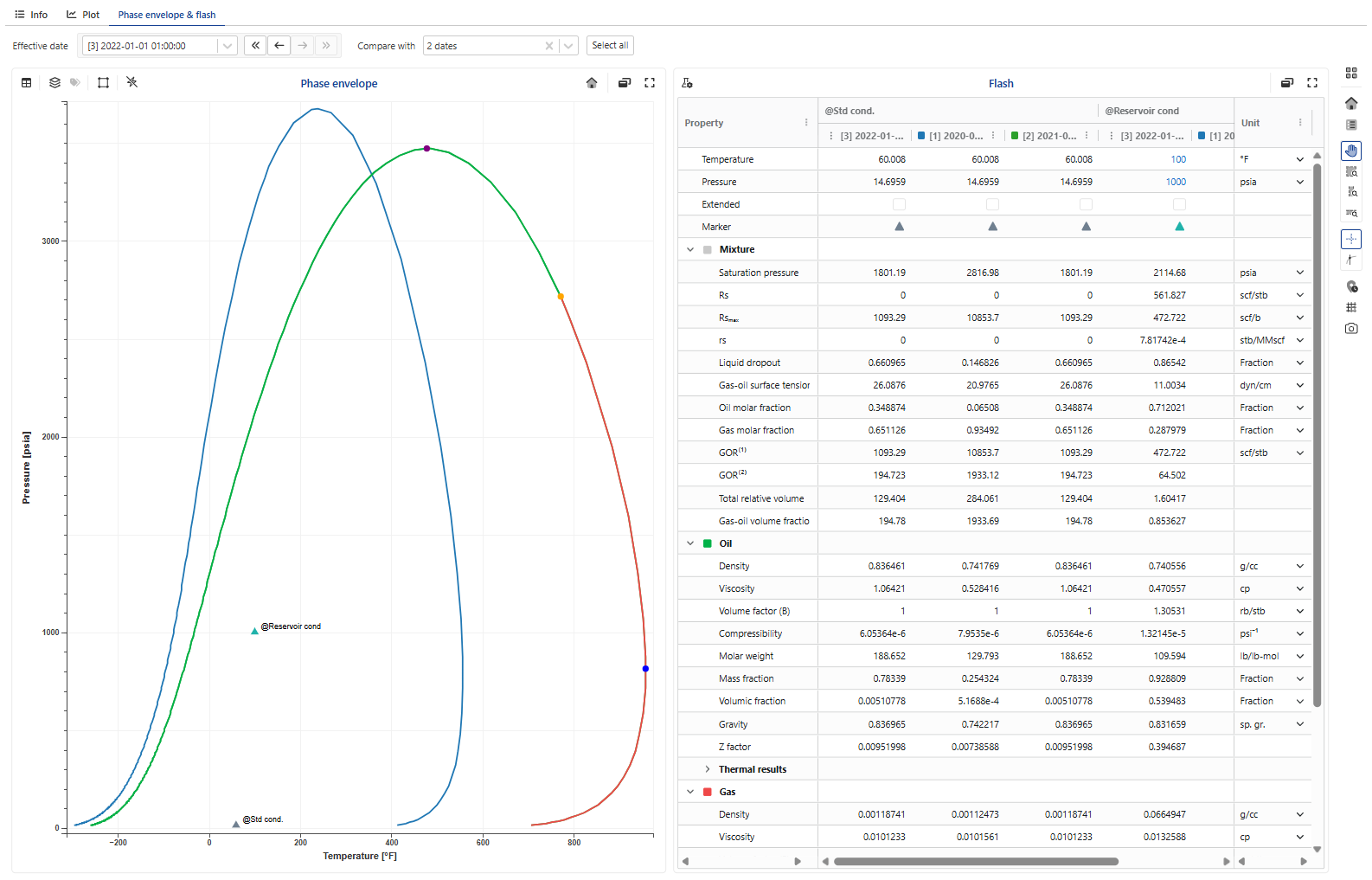
The Phase envelope and flash tab displays the fluid’s phase envelopes and flash table and offers several interactive options:
View the flash table at standard conditions by clicking on ,
 .
.Extract the phase envelope panel into a separate window using
 .
.Next to the phase envelope, the flash results at standard and reference conditions are displayed. Users can also define additional flash conditions using
 option above the table. This feature provides a quick lookup of fluid properties at a specified pressure and temperature.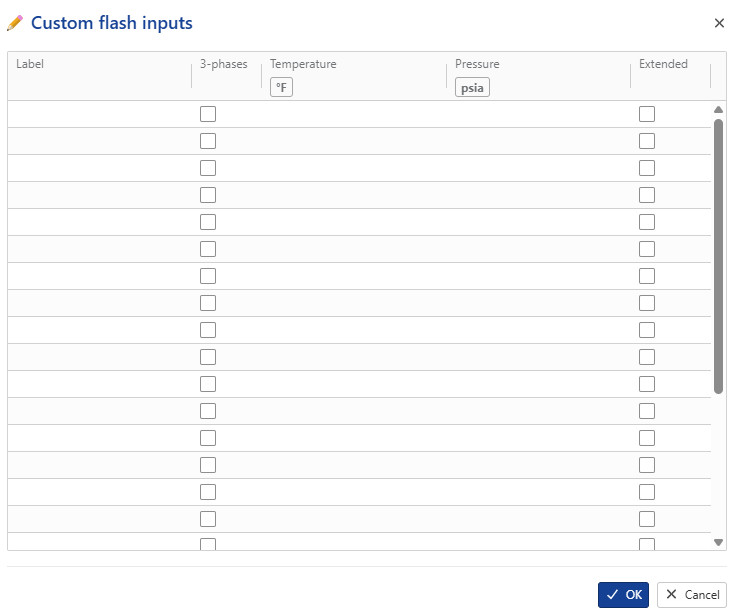
All the options are shown in the .gif below.
Note
If any inconsistencies are detected in the PVT object, a warning banner appears at the top of the Info, Plot, and Phase Envelope & Flash tabs to notify the user.
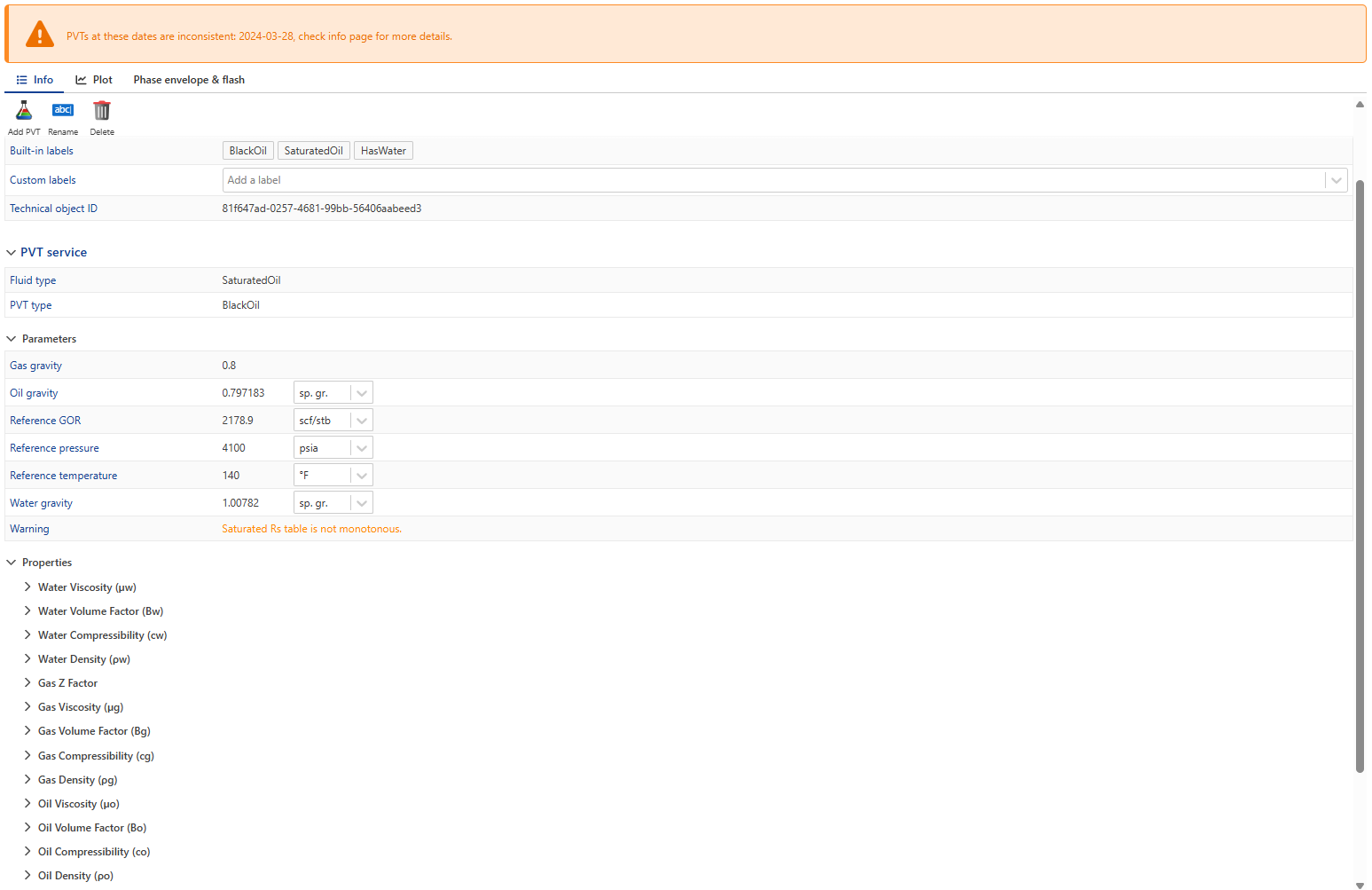
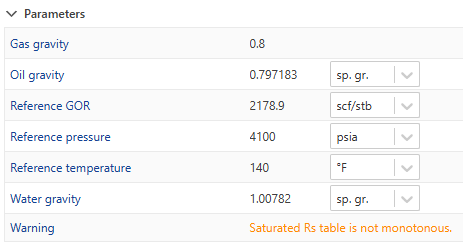
When switching to the Info tab, the Parameters section provides detailed information about where the inconsistencies were detected.
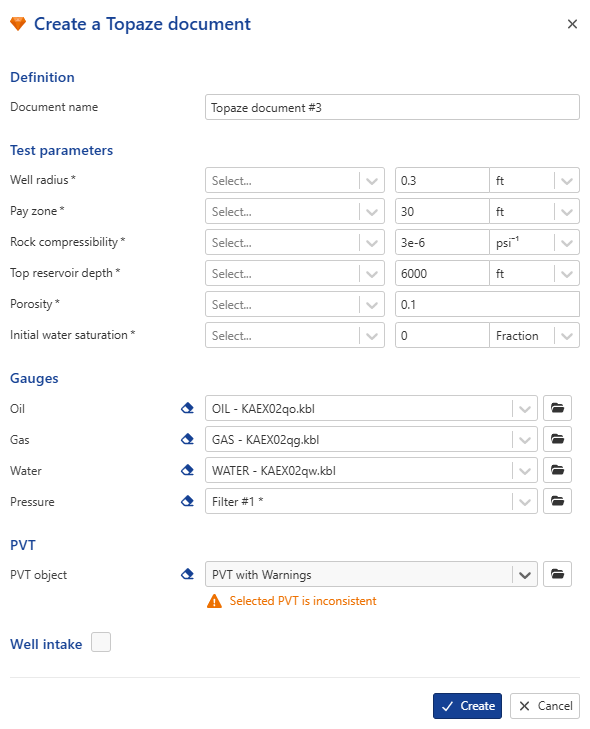
If the user attempts to use this PVT object in another workflow (such as aRTM, document creation, or Topaze) the warning is also displayed to ensure the user is aware of the issue.
EOS PVT
several tabs provide detailed information and plots related to the fluid’s thermodynamic behavior.:
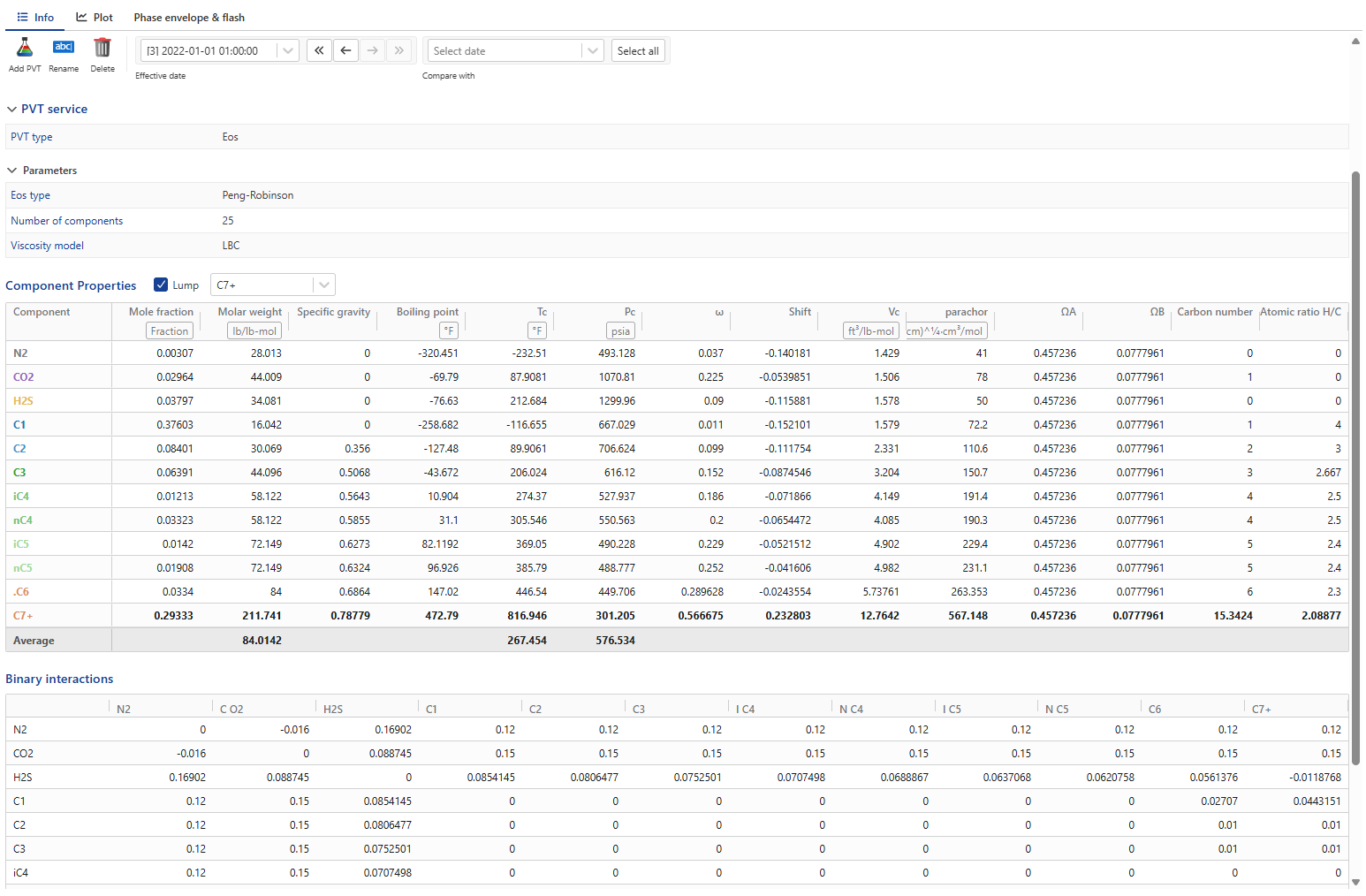
The Info tab displays the EOS parameters:
EOS model
Number of components
Viscosity model
It also shows:
Component fractions
Component properties (Pc, Tc, Vc, etc.)
Binary interaction coefficients between components
Additionally, the user can lump heavy components into a single pseudo‑component (for example, grouping all C7+ fractions into C7+).
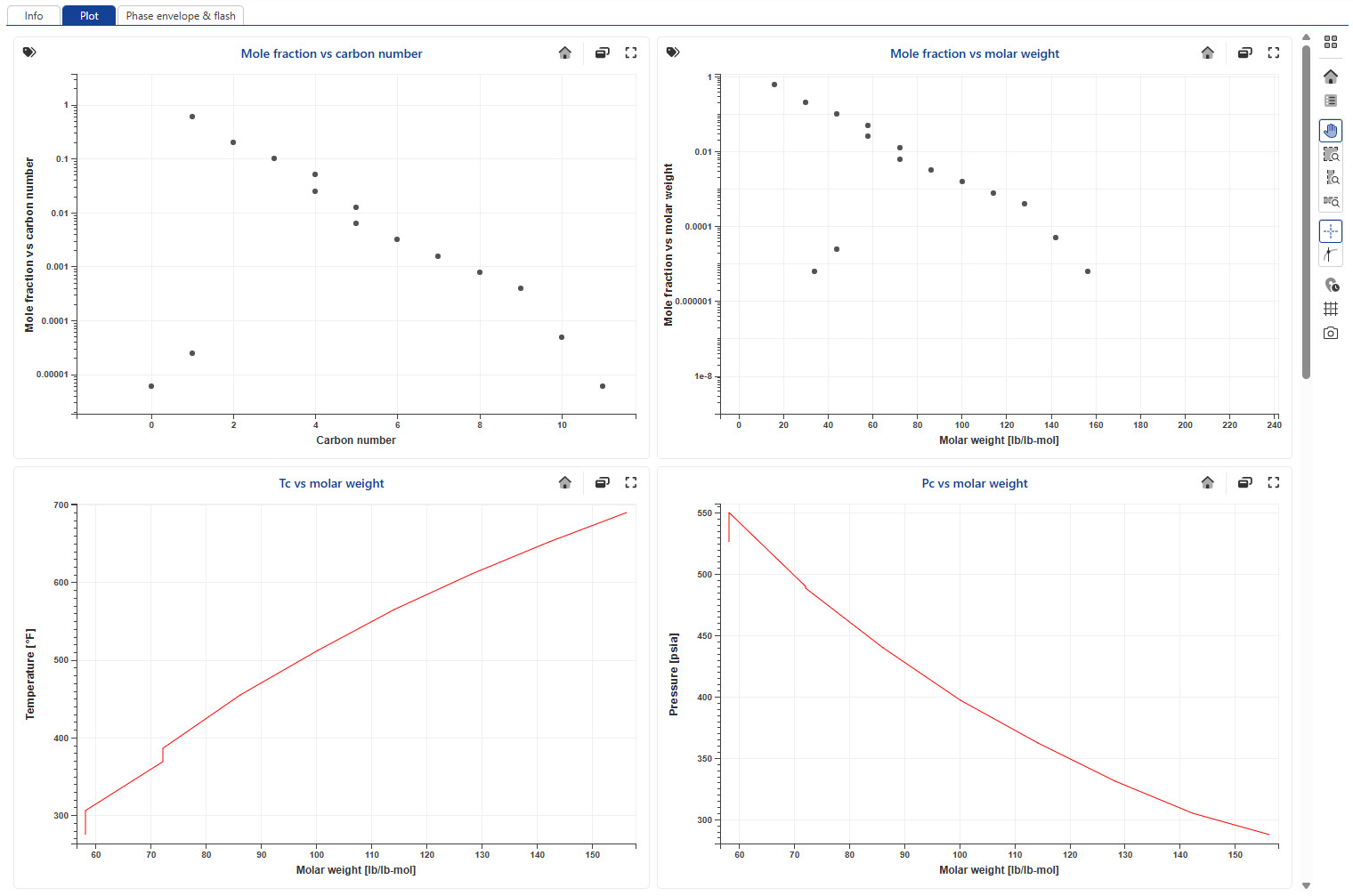
The plot tab displays the EoS consistency plots
The Phase Envelope tab displays the fluid’s phase envelope and offers several interactive options:
Access a summary table showing key fluid points such as: Critical point, saturation point, cricondentherm and cricondenbar points by clicking on ,
 .
.Display isolines by clicking on Show Contours ,
 .
.Display labels on isolines by clicking on ,
 .
.Switch the phase envelope display from Pressure vs Temperature to Pr vs Tr using ,
 .
.View the flash table at standard conditions by clicking on ,
.Extract the phase envelope panel into a separate window using
.Next to the phase envelope, the flash results at standard and reference conditions are displayed. Users can also define additional flash conditions using
option above the table. This feature provides a quick lookup of fluid properties at a specified pressure and temperature.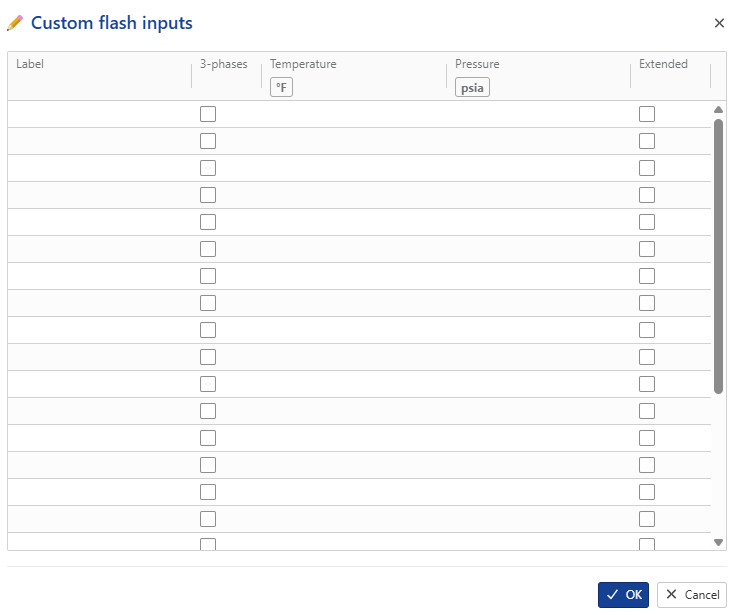
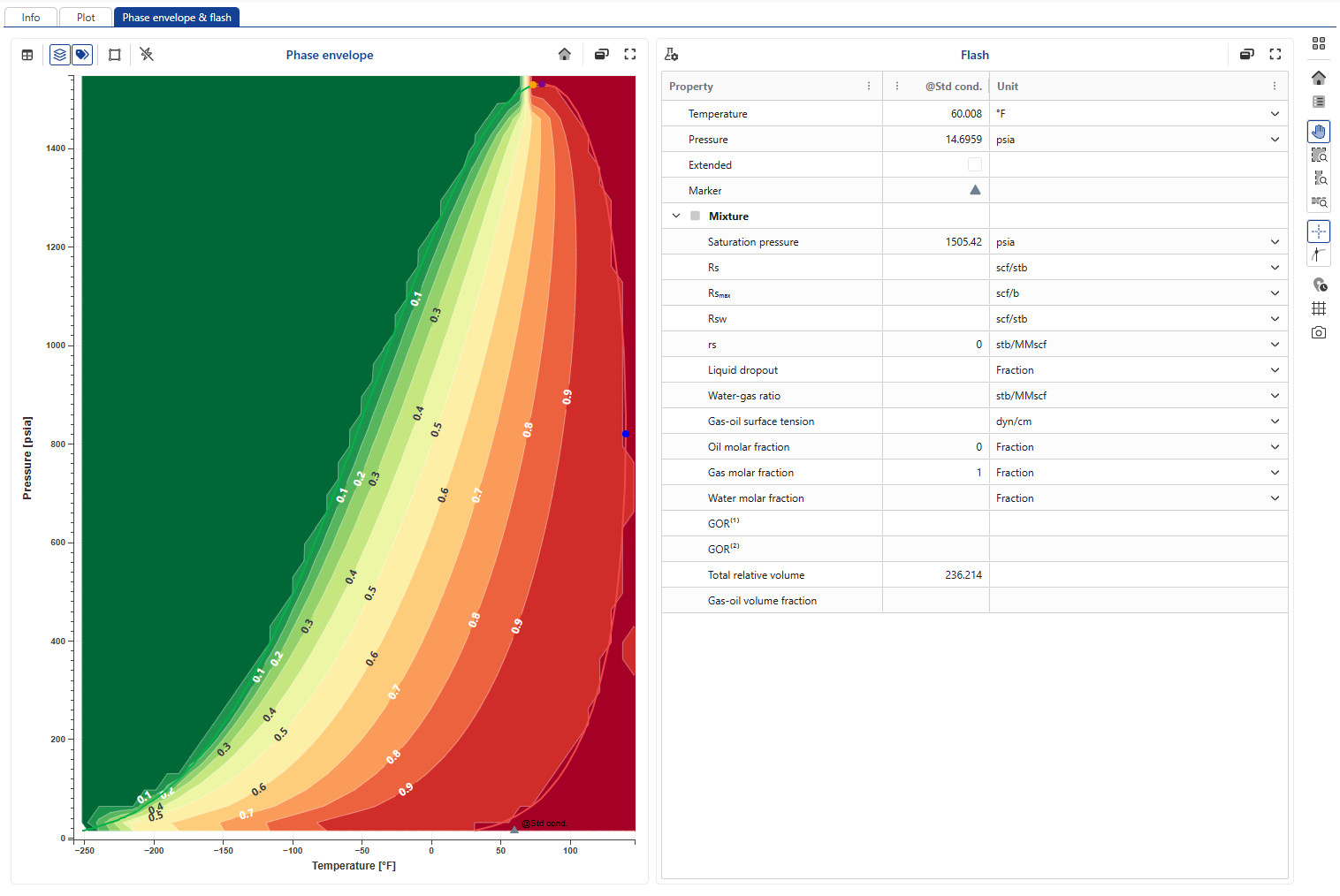
Time‑dependent EOS PVT objects can be plotted and compared, enabling users to visualize changes in fluid behavior over time.
All the options are shown in the .gif below.