Managing User Task Instances
Renaming a User Task Instance
Select the user task instance in the field hierarchy.
Click on Rename,
 , in the toolbar at the top. Alternatively, right click on the user task instance in the field hierarchy and select Rename.
Enter the new name and click on OK.
Redefining a User Task Instance
Select the user task instance in the field hierarchy.
Click on Redefine,
 , in the toolbar at the top.
Edit the user task setup as needed.
Set the time from which to apply the new definition.
Click on Redefine.
Note
Dataset inputs for user tasks are now editable. It is possible to change the inputs when redefining a user task instance
Updating a User Task Instance
If the user task script is updated, user task instances may be updated to the new definition (they are not by default). To do so:
Select the user task instance in the field hierarchy.
Click on Update,
 , in the toolbar at the top.
If a new version of the script is available, the user is prompted to confirm update:
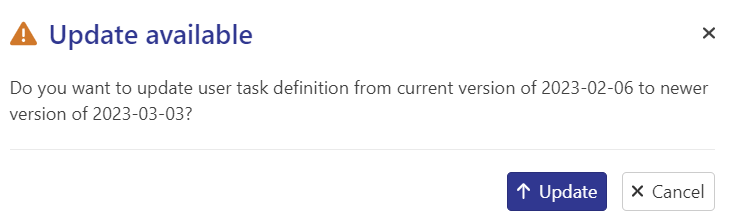
Click on Update.
Important
User task instances can also be updated directly from the aggregator level.
Updating Multiple User Task Instances in Bulk
Switch to Automation Mode and select the User tasks node.
Select the user task definition.
Click on Update,
, in the toolbar at the top:The dialog will list all the fields and wells where the selected user task is used, along with the Current version date and Update status:
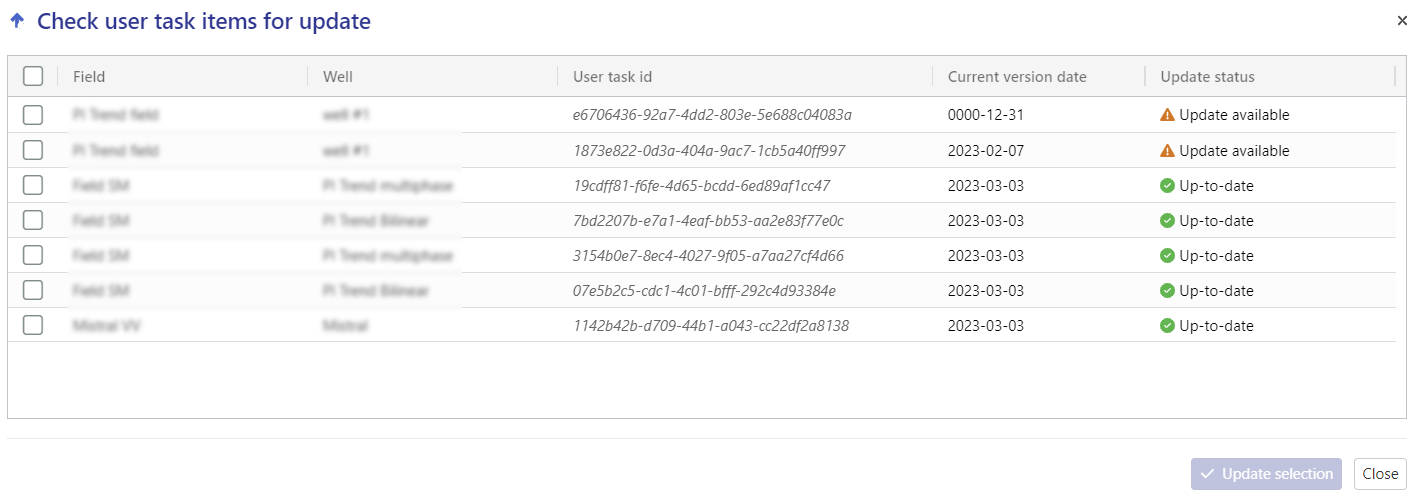
Select the wells for which the user task instance needs to be updated.
Click on Update selection.
Deleting a User Task Instance
Select the user task instance in the field hierarchy.
Click on Delete,
 , in the toolbar at the top. Alternatively, right click on the user task instance in the field hierarchy and select Delete.
In the Confirmation dialog, click on Delete.
Or,
Select the User tasks folder in the field hierarchy.
Go to the Children tab.
Select the user tasks to delete.
Click on Delete,
,.
Editing a user task instance outputs
It is possible to modify user task output datasets by removing specific data points or steps, especially when outliers need to be excluded.
Select the user task instance in the field hierarchy.
Go to the Info tab.
Click on Edit data ,
 , in the toolbar at the top.
Click on Area selection ,
 , and select the range
Click on Delete steps ,
 .
.