User Task Script
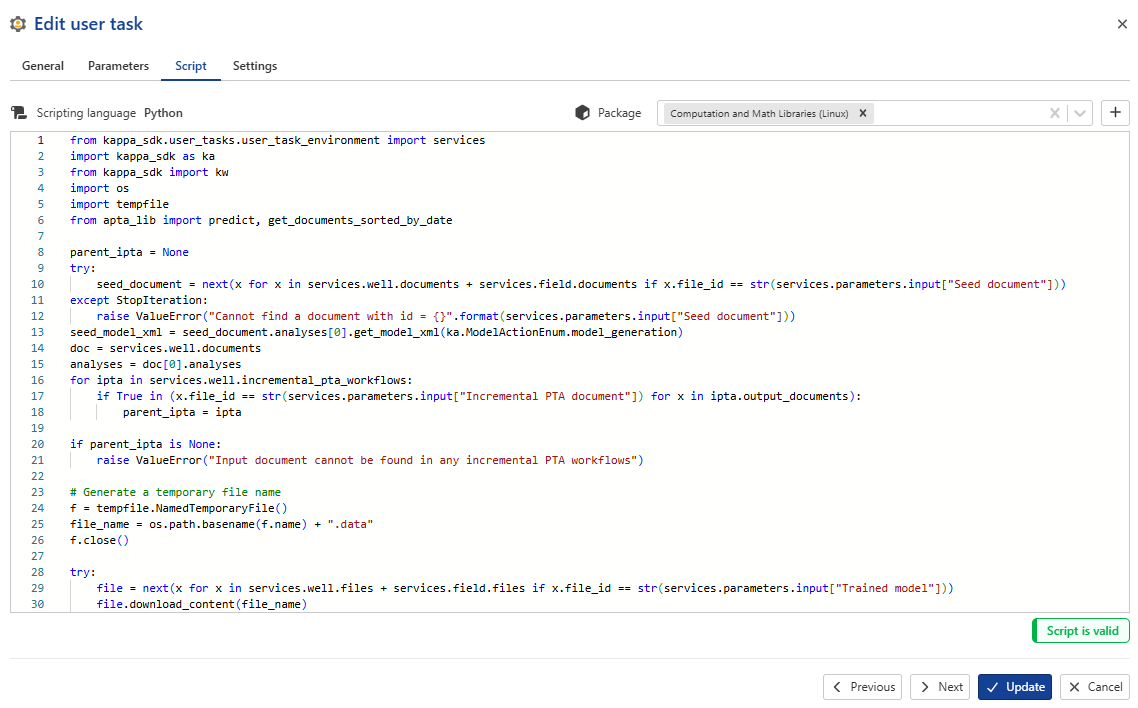
User task script is a code to implement a user's workflow inside KAPPA-Automate. This is achieved by inserting the code block into the Scripts tab in the Create a New User Task dialog box.
Currently, K-A supports user task development in Python language.
 |
Tip
To facilitate the task development in Python, an SDK provides a simplified access to the platform APIs. The Python SDK can be used to develop and run a code locally, and then migrate this code into a User task in K-A so that it can be executed by the platform automatically on selected triggers. The detailed information on the code development can be found in the KAPPA Automate Extension Guide.
When programming more elaborate tasks, it may be necessary to load external packages/libraries. These could be standard Python libraries e.g., Numpy, Scipy etc., or user modules. The packages to be used in the main script of a user task should be uploaded to the list of packages before creating the task. (see Uploading Packages for User Task Scripting below).
Uploading Packages for User Task Scripting
If certain packages to be used in the main script are not already available on the backend, they should be uploaded to the list of packages before/while creating the task.
Uploading a package before creating a user task
Switch to Automation mode.
Select User tasks in the hierarchy on the left.
Switch to the Packages tab.
Click on Create.
Input the following information about the package:
Name: any combination of letters, numbers and symbols.
Scripting language: Python.
Package description: text information that helps managing the packages.
Upload the package. This can be done in one of two ways:
Click on Select zip package. Or,
Drag and drop the zip file in the Drag and drop zip package area.
Click on Create.
Uploading a package while creating a user task
Under the Script tab, click on + next to the Package dropdown menu.

Input the following information about the package:
Name: any combination of letters, numbers and symbols.
Scripting language: Python.
Package description: text information that helps managing the packages.
Upload the package. This can be done in one of two ways:
Click on Select zip package. Or,
Drag and drop the zip file in the Drag and drop zip package area.
Click on Create.