User Task Parameters
The topic relates to definition of user task parameters when creating a user task (see Defining a User Task for detailed procedure).
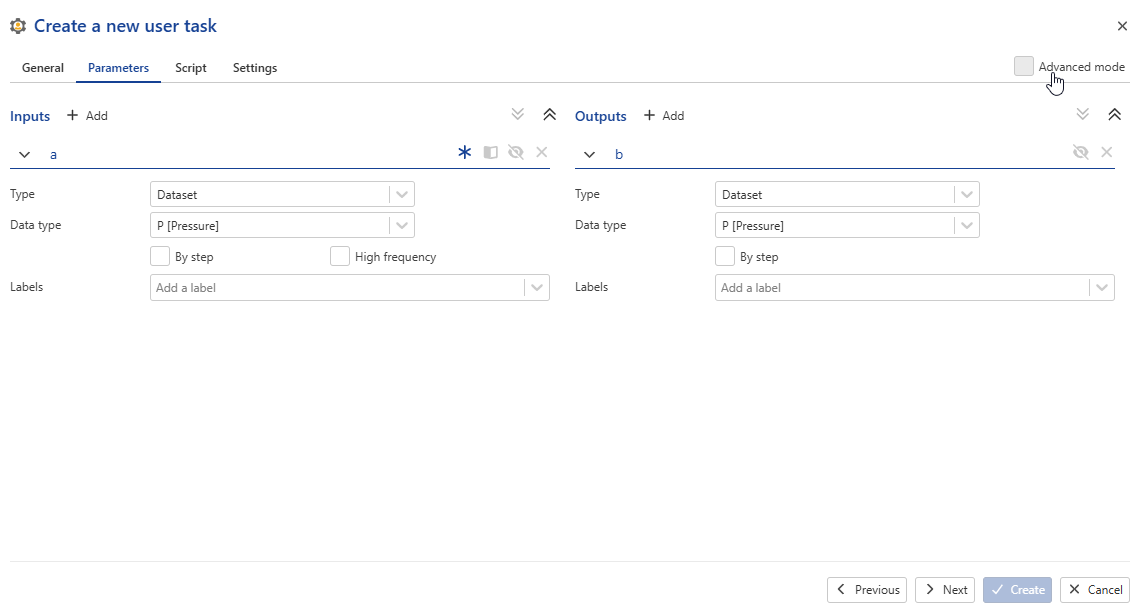
User task parameters are handled under the Parameters tab in the user task creation dialog. They can be defined in Basic (default) or Advanced mode. Users can toggle between the two using the Advanced mode checkbox at the top-tight corner of the dialog:
 |
Parameters Definition in Basic Mode
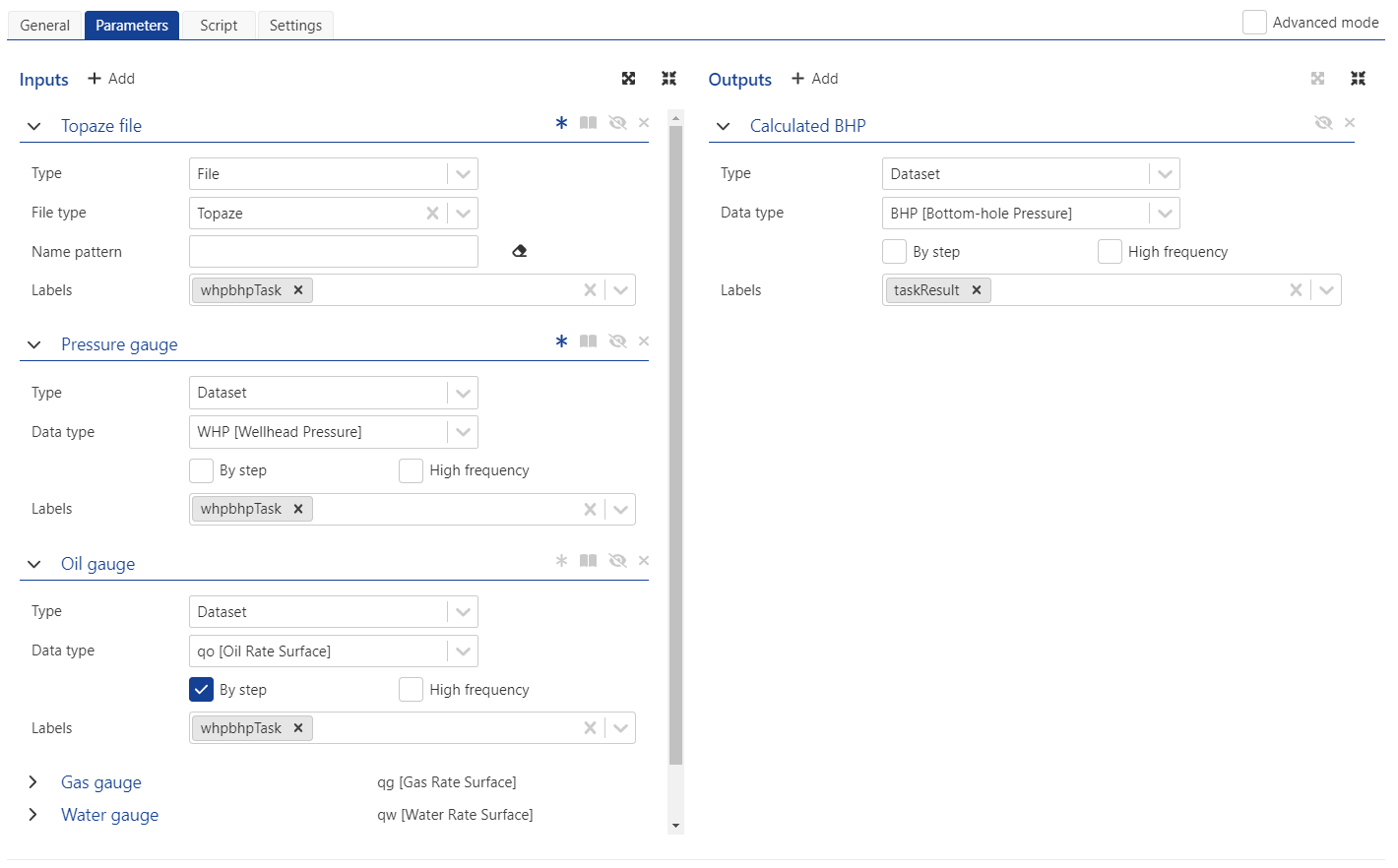
This is the default mode when creating a user task. It offers a simplified user interface to add, define, customize and delete user task parameters:
 |
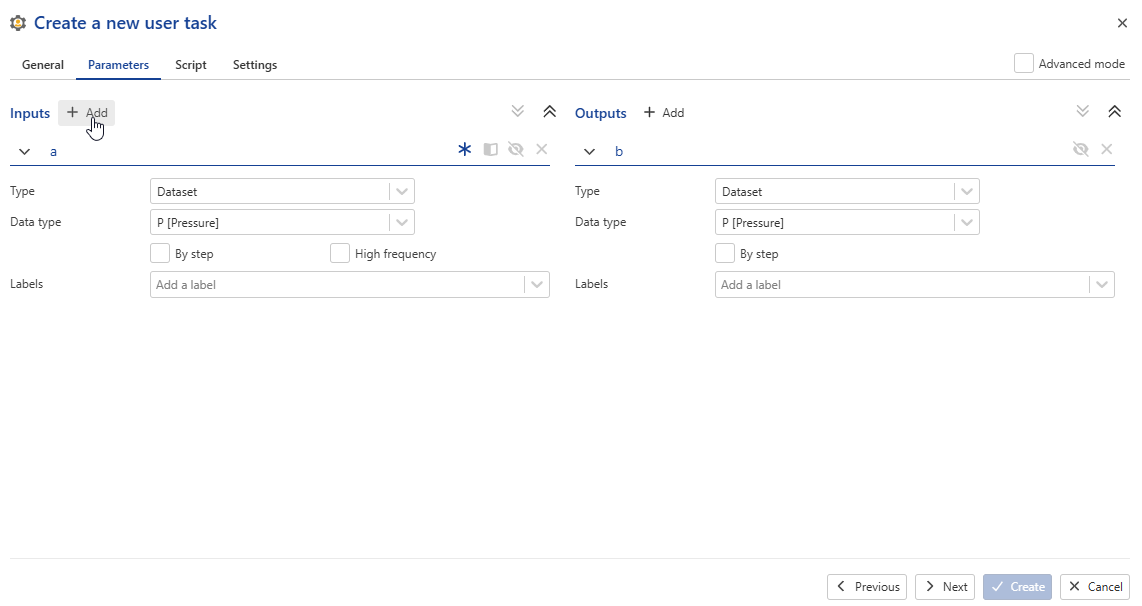
To add a new parameter, click on +Add next to the Inputs label:
To delete an existing parameter, click on
 :
: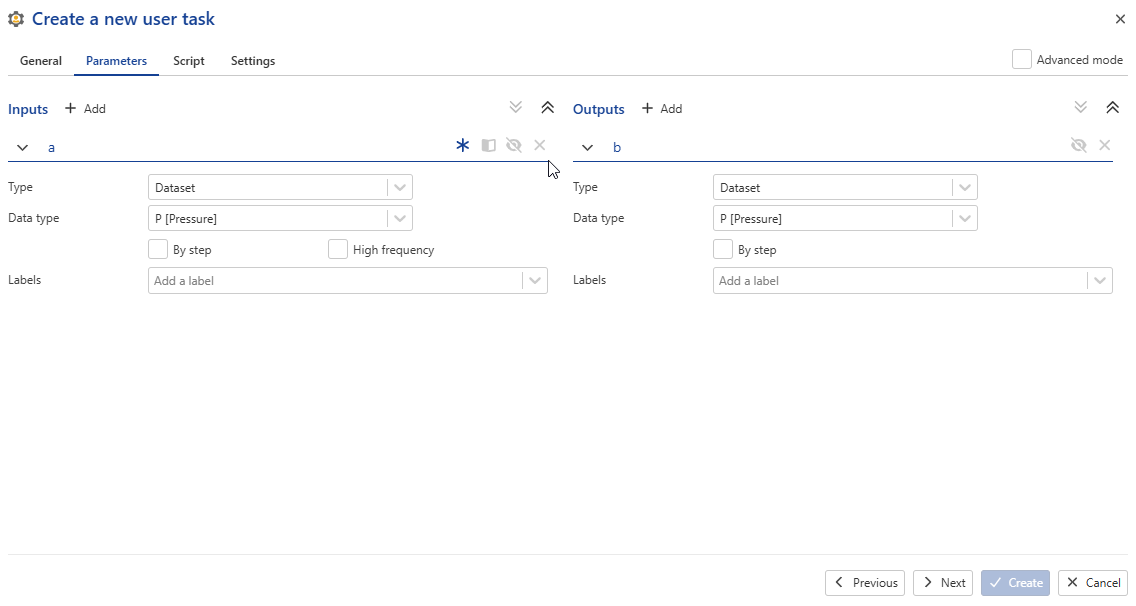
To rename a parameter, select the current parameter name (a in the illustration below) and type in the new name:
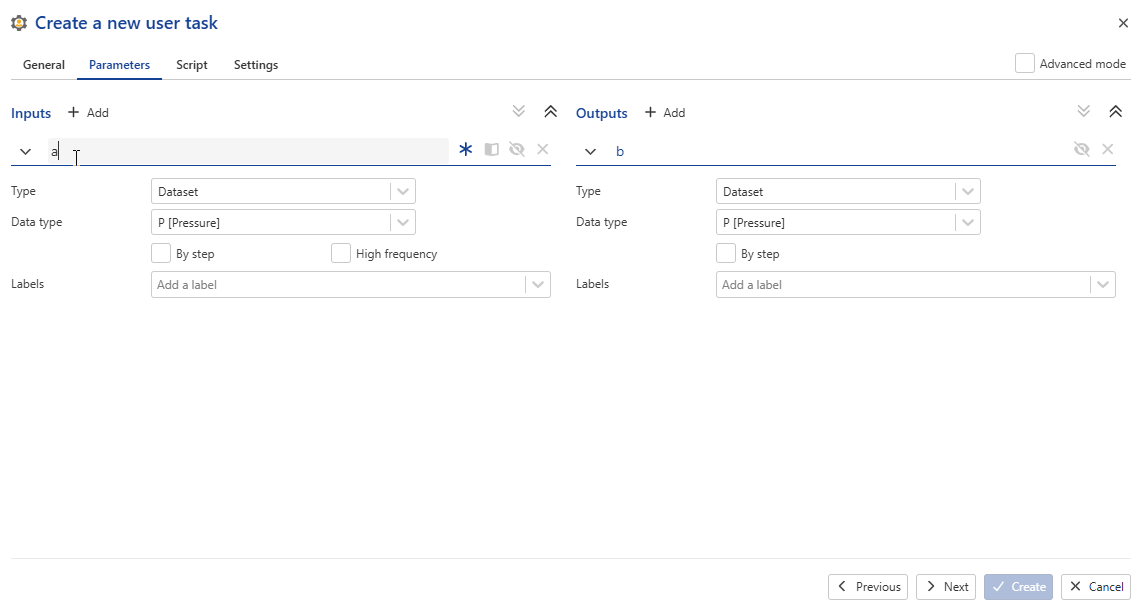
Defining Parameter Behavior
The behavior of a given parameter can be set to one of the following:
Mandatory or Optional: For Input parameters only. Toggle on (
 ) or off(
 ) to specify whether the parameter is mandatory (on) or optional (off).
Read-only or Editable: For Input parameters only. Toggle on (
 ) or off(
 ) to specify whether the parameter is read-only (on) or editable (off).
Hidden or Visible: Toggle on (
 ) or off(
 ) to specify whether the parameter should be hidden (on) or visible (off) during user task instance creation.
Parameter Types and Definitions
For a given parameter Type, users can select the Data type and specify whether the data are By step and/or High frequency.
The following parameters types are available. For any given Type, a choice of Data types is also offered:
Type | Definition |
|---|---|
Boolean |
|
String |
|
Double |
|
Integer |
|
Data/time |
|
Enum |
|
File |
|
Dataset |
|
Well property |
|
PVT |
|
Wellbore object | |
Well property container | |
File folder | |
Survey container | |
Model Book |
Parameters Definition in Advanced Mode
This mode is used for more complex user tasks with conditional parameters and can help creating a more user-friendly interface for the end-user when creating a user task instance. It also can be used for the complex parameters’ validation and gives the possibility to set the parameters using YAML.
When turned on, the Parameters tab display changes and consists of four parts. Top left section is the Input and output parameters description in YAML. Top right section is used to insert the JavaScript that describes the rules for the parameters transformation.
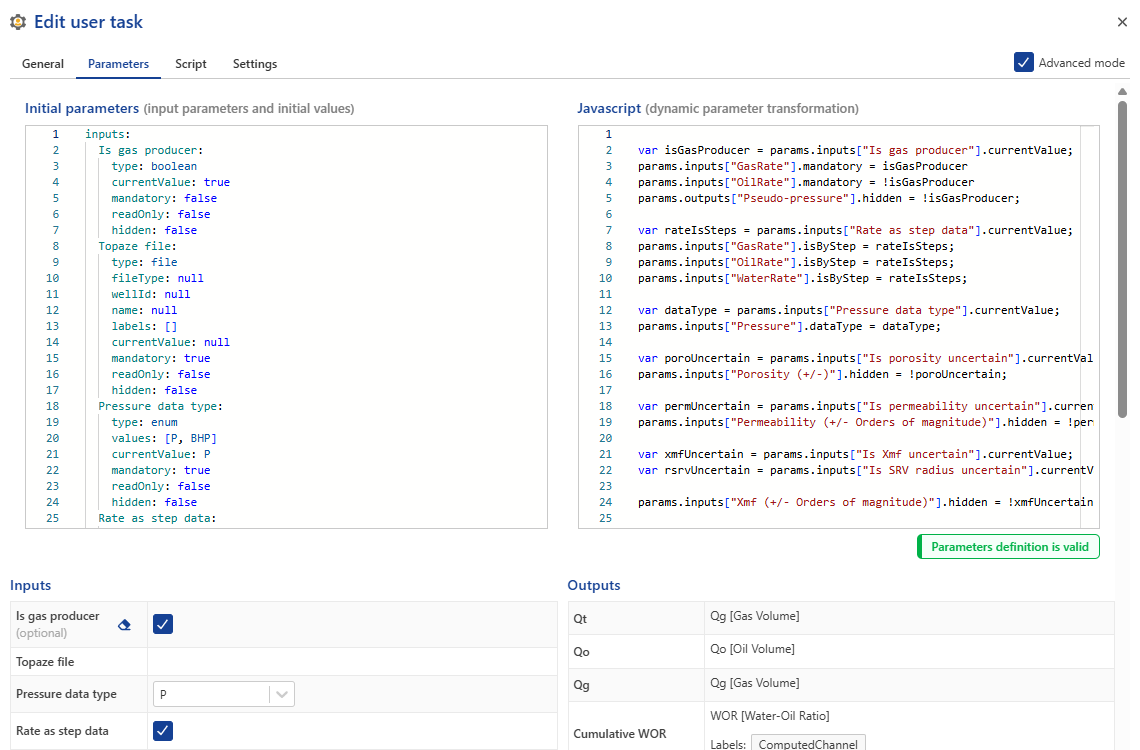 |
If the parameters were set in the simple mode the YAML description is created automatically and can be reviewed when switching to Advanced mode.
Bottom left and right sections are concise descriptions of the Inputs and Outputs, based on the YAML script, correspondingly.
To check that the YAML and Java Scripts do not have syntax errors click on Validate. if there are no compilation problems you will see Parameters definition is valid; otherwise, the information on the possible errors will be shown in red either under the Input parameters or JavaScript box depending on the error; if error description is too long to fit the allocated space, click on Details to see the complete text of the error description.
For more information, see KAPPA-Automate Extension Guide.